On this page
MT4 is the trading platform used most widely at retail forex brokers. Whether you do your analysis on TradingView or read the news on ForexFactory, in most cases you still place your orders through MT4, MT5 or your broker’s own platform, so you need to be fluent with it to avoid mistakes when you place an order.
If you have read What is forex or have traded forex before, you have surely come across the term MT4, and as we have stressed before, this is basic knowledge you have to have if you want to take part in forex. So in this article we will try to set out the most basic information about the trading platform that anyone who wants to enter the forex market keeps close at hand.
What is MT4?
MetaTrader 4, or MT4, is software that lets a trader deal in foreign exchange along with other financial products such as stocks, gold, oil, commodities, indices and crypto.
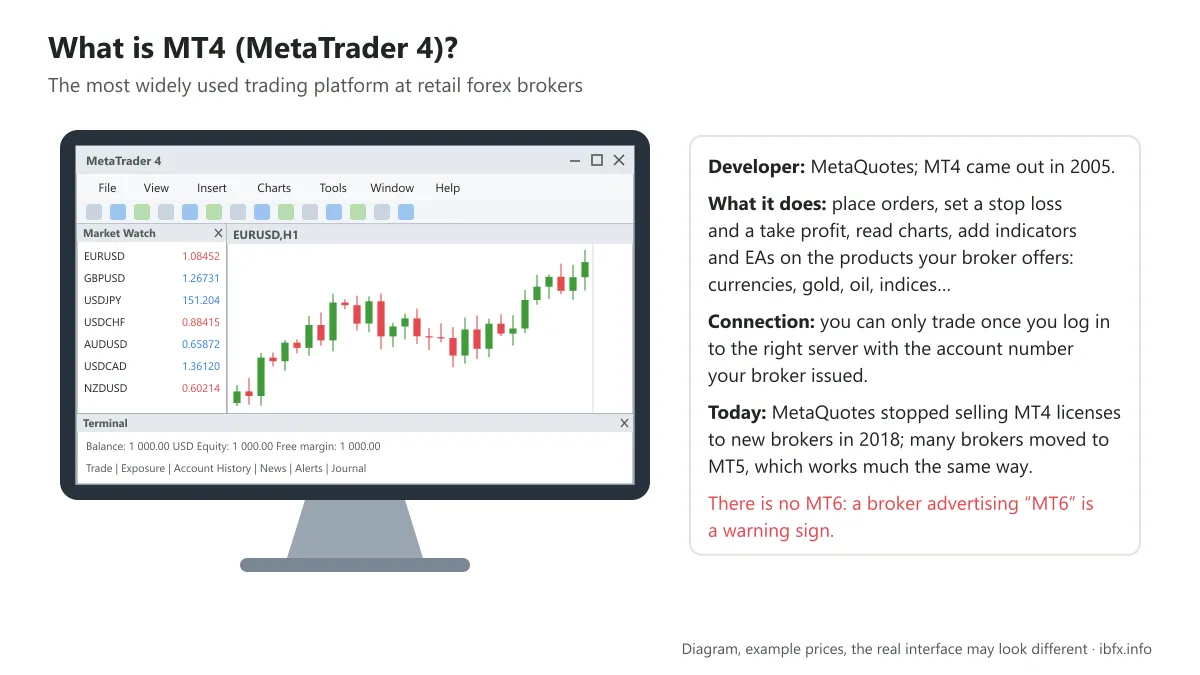
The MT4 platform was built by MetaQuotes, a company founded in Russia, and came out in 2005. MetaQuotes later brought out a newer platform, MT5, and since 2018 it has stopped selling MT4 licenses to new brokers, so more and more brokers are moving to MT5. Even so, a great many brokers and traders still use MT4, and MT5 works in much the same way.
It is popular because MT4 is not only used to trade financial products, it also holds a good number of basic technical analysis tools and indicators for traders. On top of that, coders themselves have written many advanced indicators on this platform for traders to apply to their own trading plans.
A word of warning: a good many low-quality forex brokers advertise something called MT6, but MetaQuotes Software has still not built an MT6 and stops at MT5, so be careful when you trade at brokers like these.
Where to download MT4
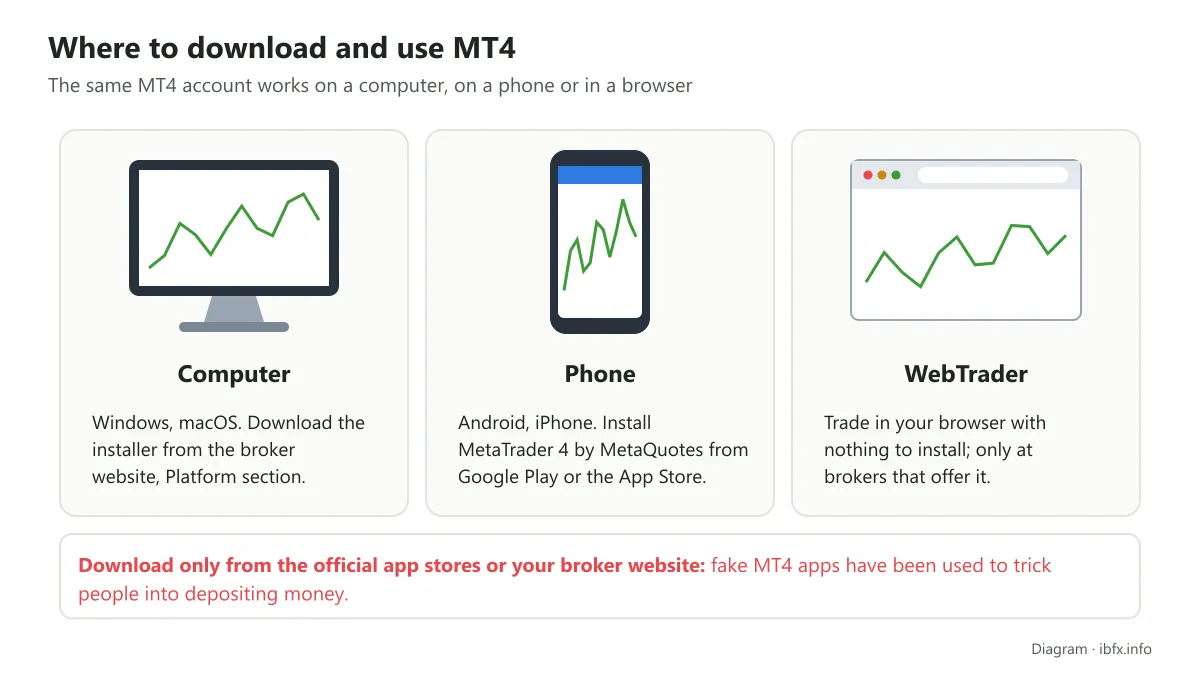
Besides the desktop version of MT4, there are now other versions for mobile phones that work with any broker offering MT4. All you have to do is go to Google Play or the App Store, download the MetaTrader 4 app by MetaQuotes and install it, and you can use it. Download only from the official app stores or from your broker’s website; there have been a good many fake MT4 apps used to trick people into depositing money.
On a laptop, you need to go to the website of the broker you registered your account with, find the Platform section and pick the MT4 download to install it.
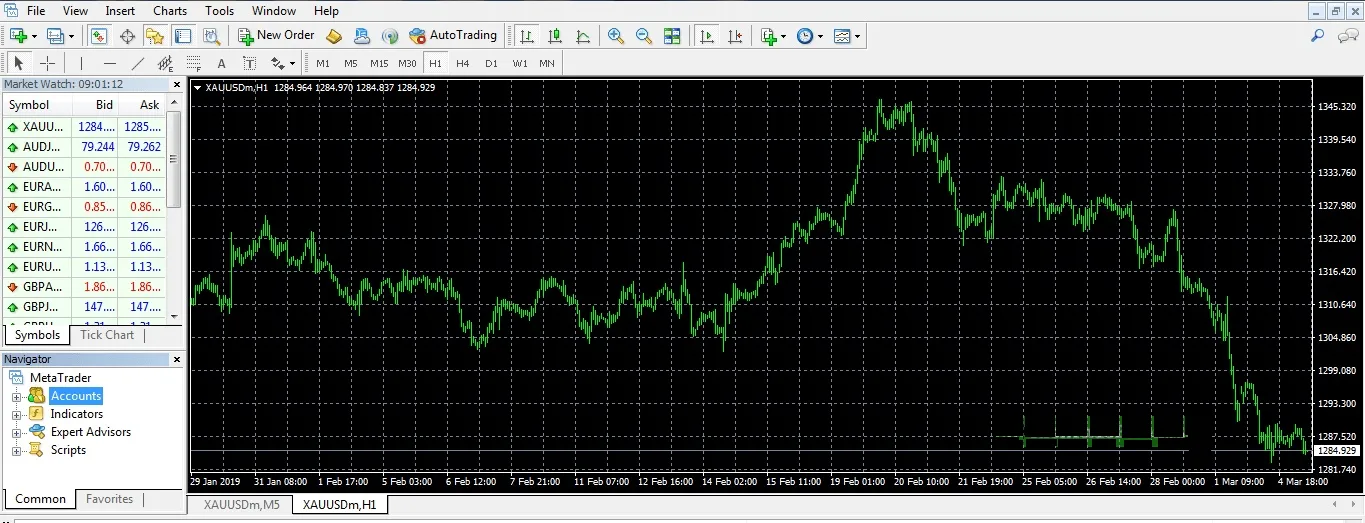
Here is what the MT4 trading platform looks like:
What is MT4 used for?
At heart MT4 is a bridge between the trader and the broker’s server. That is why, even though it is the same MT4, whichever broker you trade at you have to pick the right server and log in with the account number that broker issued before you can start trading. Some of the basic things MT4 does:
- Place an order, cancel an order, take profit or cut a loss
- Install the EAs and the indicators a trader wants
How does MT4 differ from TradingView?
Basically these are 2 pieces of software traders use to analyze and trade forex. But the 2 of them differ on a number of points, which can be seen as each one’s own strength. And the biggest difference between TradingView and MT4 is that TradingView focuses almost 100% on charts, making it a tool that supports the trader as much as possible, while MT4 is where the broker takes orders from the trader and executes them.
More and more brokers now let you connect your trading account to TradingView and place orders straight from the chart; check whether your broker supports that.
If it does not, you still need MT4, MT5 or the broker’s own platform to place orders. And if you do not yet know what TradingView is, see our detailed guide below:
| MT4 | TradingView | |
| Signing up | Completely free; all you need is an account, live or demo, at 1 forex broker and you can use it. | There is a free plan and a paid plan; the free plan limits a good many features. |
| Indicators | 30 built-in indicators; you can also add indicators you write yourself (MQL4) or ones your broker supplies. | More than 100 built-in indicators, plus thousands written by the community. |
| Multiple timeframes | Only 9 timeframes. | Customizable; a trader can create whatever timeframe they want. |
| Operating systems | Windows, macOS (the old MT4 build does not run from macOS Catalina 10.15 on, see the guide below), Android, iOS and WebTrader (depending on the broker). | Web browser, plus apps for Windows, macOS, iOS and Android. |
| Products | Only the products your broker offers. | A great many markets: stocks, forex, crypto, commodities, indices and more (some real-time data is paid for). |
| Alerts | Completely free. | You need the paid plan to run a good number of alerts at the same time. |
| Community | The MQL5 community (mostly about indicators and EAs). | It is a social network for traders; anyone can connect, and it has a very large trader community. |
Besides MT4 and TradingView, you should also know about ForexFactory, a website famous for its economic calendar. See our article on ForexFactory:
How the MT4 window is laid out
You do not need to have this part down cold yet. If this is your first time with MT4, you can scroll straight on to the sections below and read our step-by-step guides to using MT4.
All of the basic features sit in the 3 bars at the top of MT4.
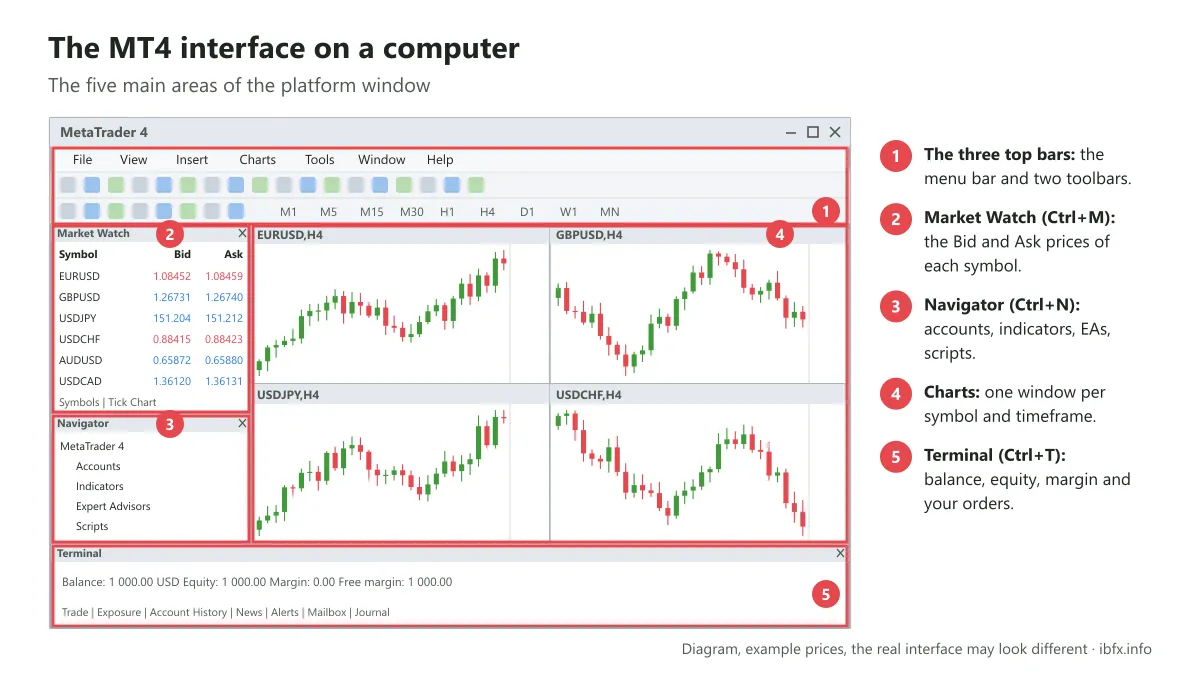
Basically the first bar holds every feature, the 2nd bar holds the ones used most often, and the 3rd bar mostly holds the tools used for technical analysis, such as drawing a trendline, the timeframe buttons and the annotation tools.
To keep things easy to follow we will go through the features in the order of the first bar in MT4: File, View, Insert and Charts.
- File: this is the part with the most features; some of the main ones are these:
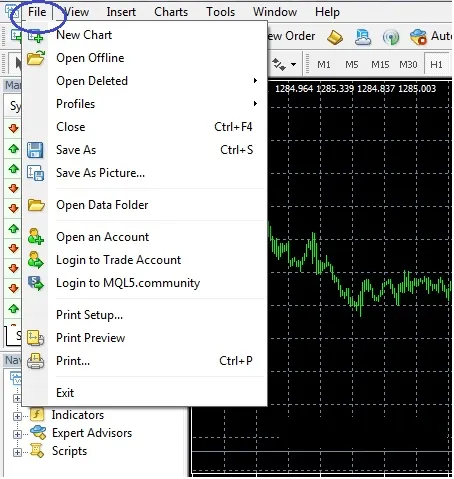
Open an Account: open a new account straight from the platform, usually used for a demo account. A live account is better opened through the client area on the broker’s website.
Login to Trade Account: sign in to your MT4 account.
Note: after you click this, you do not only fill in your MT4 account number and password; you also have to pick the right server and the right account type, Demo or Real, that is, live.
- View
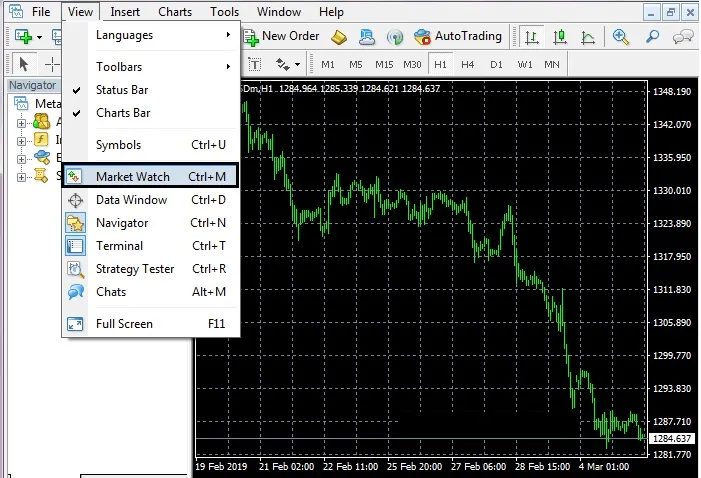
Clicking View brings up a menu of the basic features, and the one you most need to care about is Market Watch (it is usually on by default; if it does not show up in your platform, all you have to do is press Ctrl+M).
- Market Watch: shows the list of exchange rate pairs and products you can trade (the Symbol column). The Navigator window (Ctrl+N) usually sits right below it.
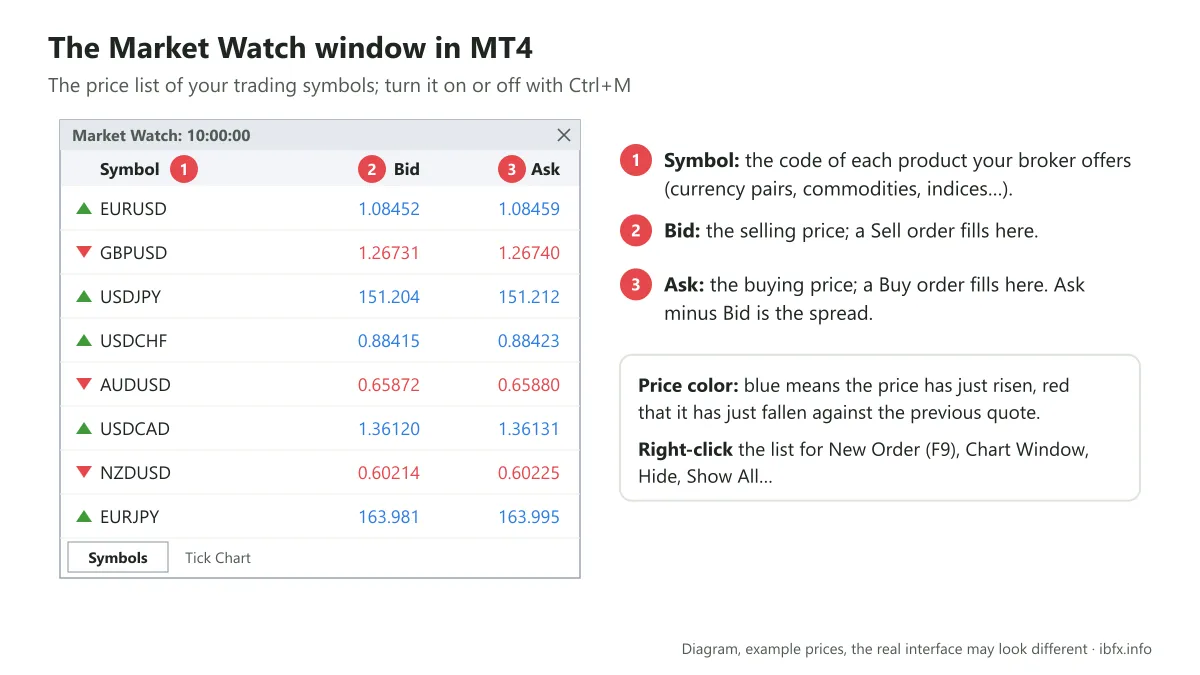
Symbols: where every currency pair you want to trade is shown, with 3 main columns, Symbol, Bid and Ask. Right-clicking in the Symbol column brings up a menu holding New Order, Show All, Hide, Hide All and Chart Window (there are a great many entries, but these are the most important ones to know).
New Order: used to enter a new order. To be quick about it, just press F9 and the order window comes up, like this:
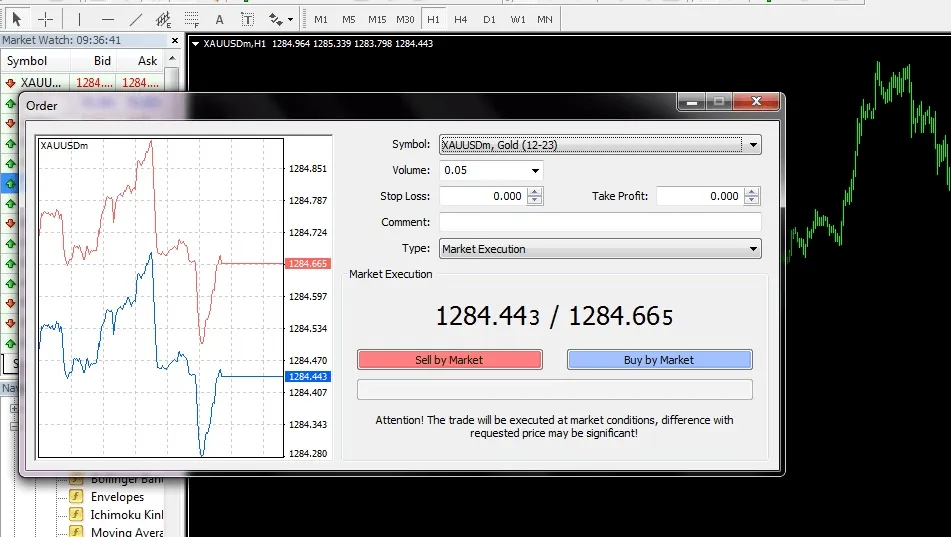
In this window, when you place an order, you fill in the position size (Volume), the stop loss level (Stop Loss) and the take profit level (Take Profit). The platform lets you leave Stop Loss or Take Profit empty, but a beginner should build the habit of always setting a Stop Loss; the position size, on the other hand, has to be filled in.
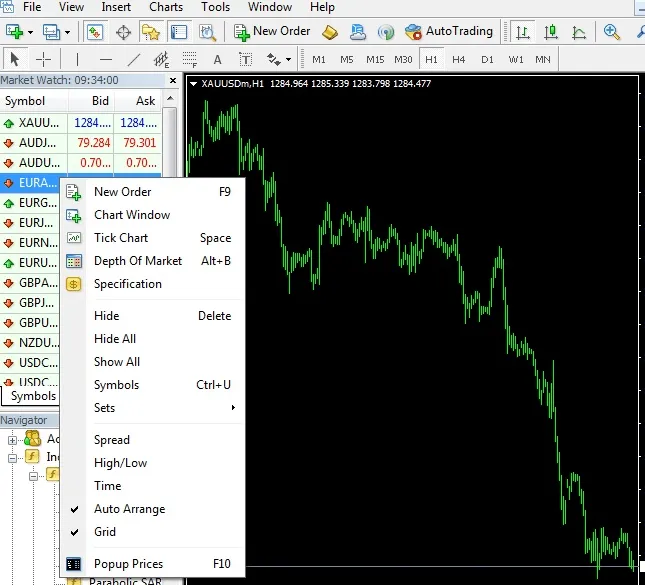
Show All: to show every currency pair or product the broker offers.
Hide: hides a currency or a product you do not want.
Hide All: hides every product.
Chart Window: opens the chart of the currency pair or product you right-clicked on.
2.2. Navigator (Ctrl+N): holds the Accounts, Indicators, Expert Advisors and Scripts branches.
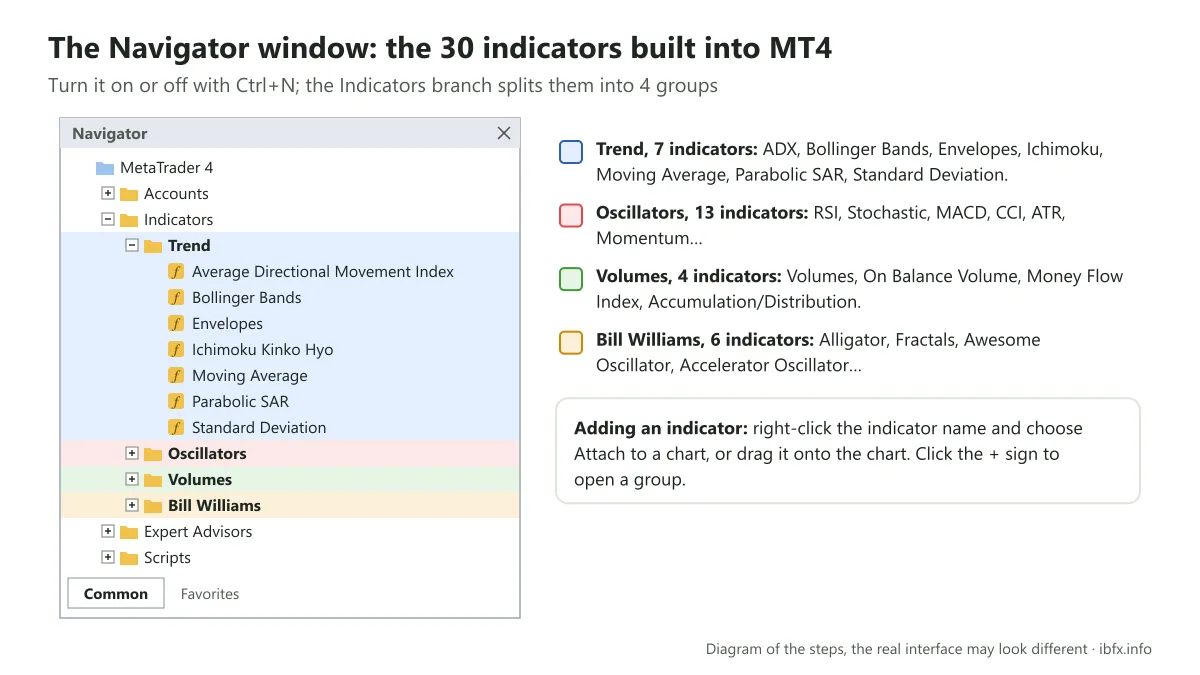
Accounts: shows your trading accounts.
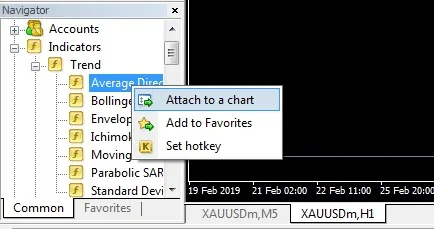
Indicators: holds all of the basic indicators you can use for technical analysis and for working out the trend before you enter. In this branch the indicators are split into groups such as trend indicators (Trend), oscillators (Oscillators), volume (Volumes) and Bill Williams. Each of these holds a number of different indicators; to see them all, just click the + sign. To use an indicator, right-click it and choose “Attach to a chart”.
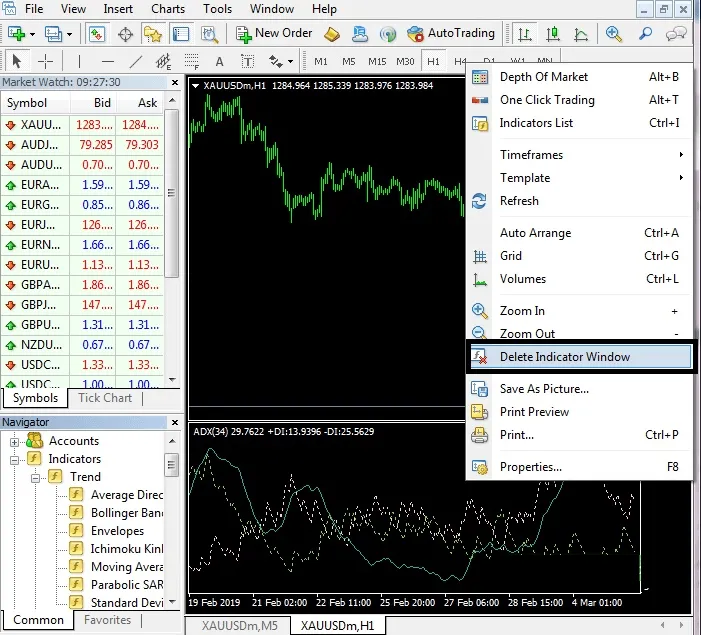
If you no longer want that indicator, you do the same thing: right-click on the indicator side and choose “Delete Indicator Window”.
2.3. The Terminal window in MT4 (shortcut Ctrl+T)
This one shows your account balance (Balance), your equity (Equity) and your margin (Margin) as they stand at the moment, along with any open positions or pending orders (if you have any open or pending).
- Insert: one of MT4’s strong points, giving you a great many technical analysis tools.
Besides the Indicators branch that MT4 places below the Symbol list, which we went through above, you can dig further into these tools by clicking the Insert tab and choosing the Indicators line, which opens a whole series of other options. Adding and removing an indicator works the same way as above. In the Insert menu you should also pay attention to these parts:
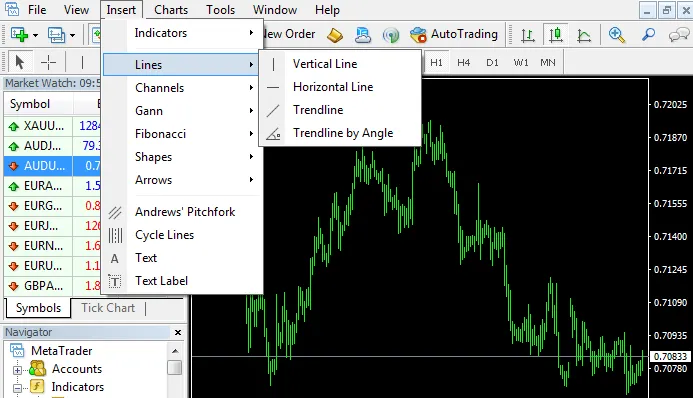
Lines and Channels: used to draw lines and trends on the chart for analysis
Fibonacci: 1 of the best-known tools in technical analysis, usually used to find reference zones for taking profit and cutting losses.
Shapes and Arrows: use geometric shapes and arrows to mark up and analyze the chart.
Text: to write text on the chart.
- Charts: in this menu, these are the entries you need to care about:
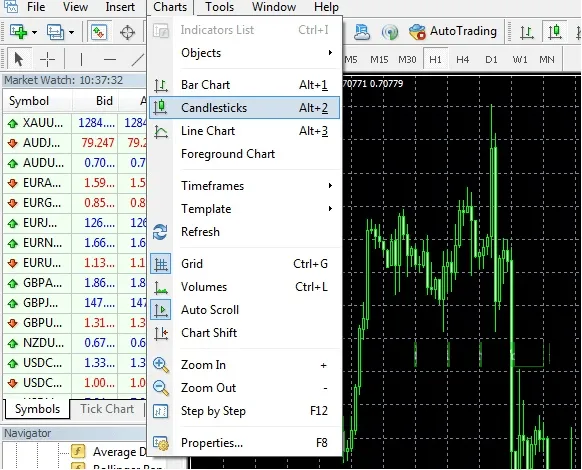
Candlesticks (shortcut Alt+2) sits between Bar Chart (Alt+1) and Line Chart (Alt+3), the 3 chart types common in financial markets. Most traders use the candlestick chart (Candlesticks) because it is the easiest to read.
Timeframes: the timeframes in the MT4 trading platform
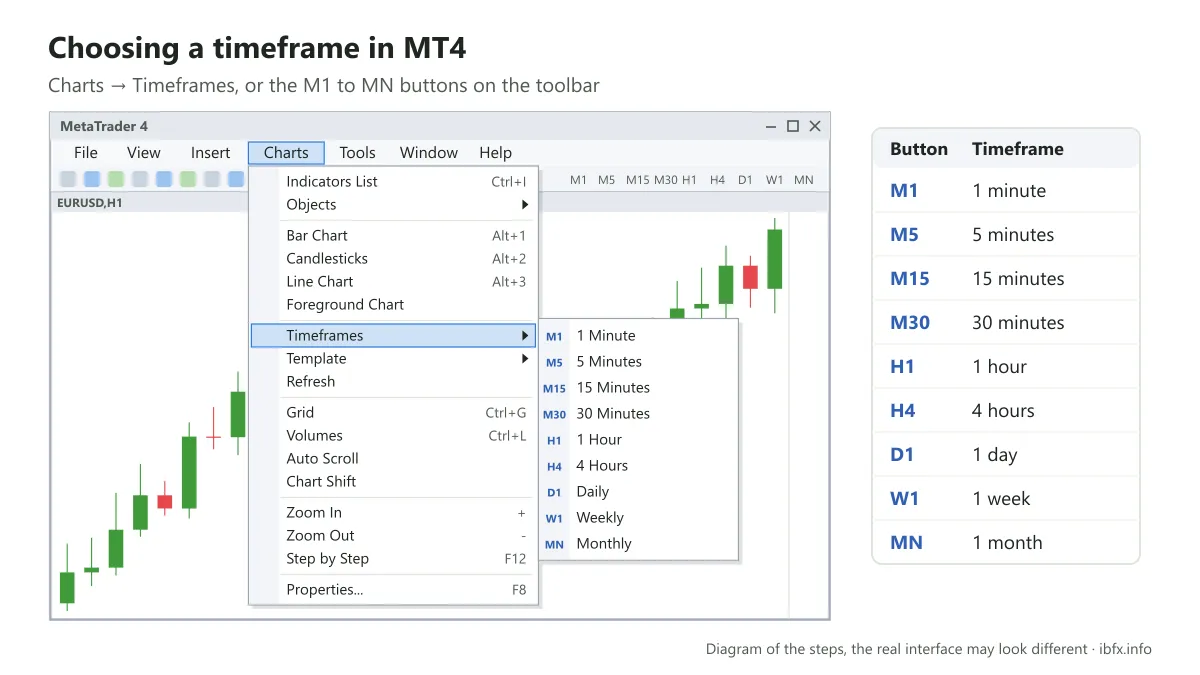
This area holds the M1, M5, M15, M30, H1, H4, D1, W1 and MN buttons, which stand for the 1 minute, 5 minute, 15 minute, 30 minute, 1 hour, 4 hour, 1 day, 1 week and 1 month timeframes. You click one of those buttons to choose the timeframe the chart is drawn on for your analysis.
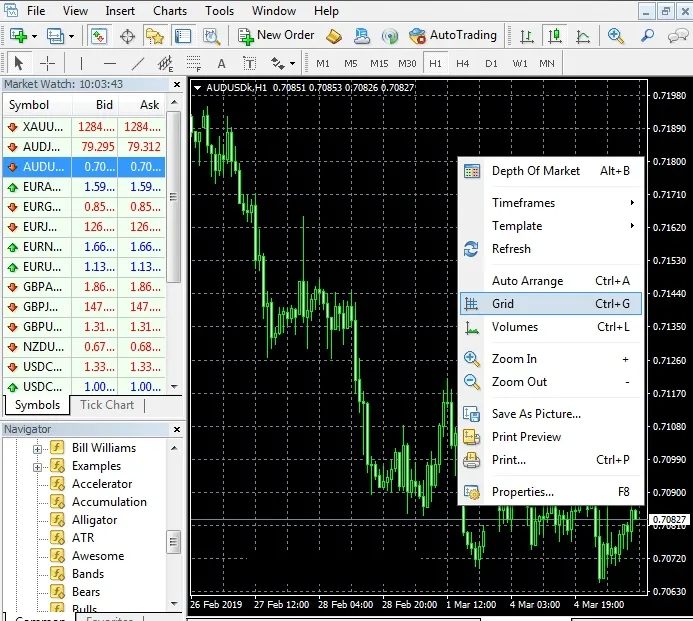
Grid: the grid shown on the chart, splitting it into small squares so it is easier to read. If you find it busy and want the Grid gone, all you have to do is right-click and click the Grid entry.
Auto Scroll: scrolls the chart to the newest candle on its own as new prices come in
Chart Shift: leaves a gap at the right edge of the chart so the current candle is easier to see
Properties: a very important one; it lets you redesign the look of the MT4 chart so that it is easy on the eye and fits your own style.
Template: this one is genuinely useful once you have set up the indicators you like and the charts of the pairs you most want to watch, and you want to keep exactly that layout for your next sessions. All you have to do is click Template —> Save Template and give that chart layout a name. To use it again later, go back into Template and pick the layout by name and it comes up at once.
How to trade with MT4
To trade on MT4, a trader has to go through 4 basic steps:
Step 1: register an account at a forex broker and verify your identity
Step 2: deposit money into the account
Step 3: log in to MT4. As soon as step 1 is done, the broker sends your account number, your password and your trading server to the email address you registered with, and you use all of that information to log in to MT4.
Step 4: place your trade
A beginner should get used to all of the steps above on a demo account before depositing real money.
How to add 1 currency pair and open 1 trade
Before we get to opening a trade you need to know how to add 1 currency pair, because right after you log in the broker only leaves a certain number of pairs showing by default. So before the guide to opening a trade, you first have to add a few of the currency pairs you want to trade. In MT4, right-click in the Market Watch window and choose Show All to show every symbol, or choose Symbols to search for and add the exact pair you want to trade.
How to place a Buy Limit or a Sell Limit order
One of the key things about using MT4 is placing and closing orders (cutting a loss or taking profit). MT4 offers 2 kinds of order: one that fills straight away at the market price, and a pending order. Within this article we only cover how to work the platform. For what each order type means, see:
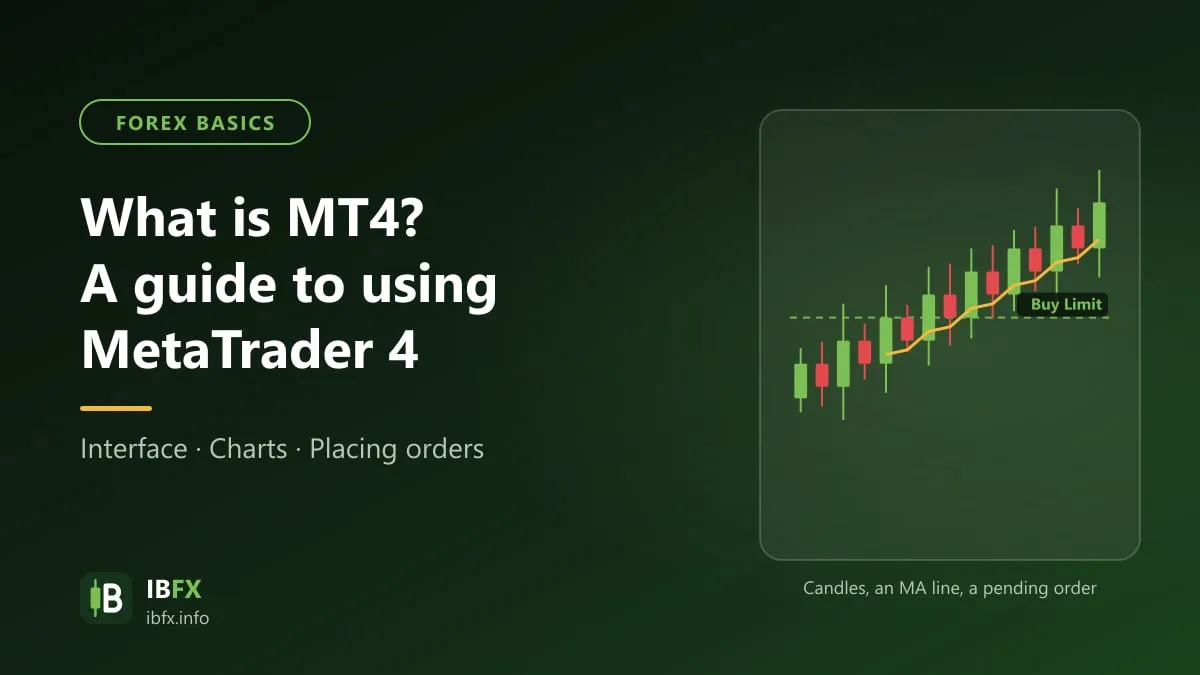
To open a trade, click New Order (or press F9), pick the currency pair and enter the position size. To fill straight away at the market price, choose Market Execution and then click Sell or Buy. To place a pending order, choose Pending Order, pick Buy Limit or Sell Limit, enter the price in the at price box and click Place.
How to set a stop loss and a take profit in MT4
Once you have placed 1 trade, remember to set the stop loss right away. For a trader new to the job this really is a hard thing, and they seem to skip this step every time, but DRILL IT UNTIL IT IS A REFLEX so that you do not blow up your account later on.
As for setting the stop loss and the take profit: after the order is placed you can hover over it and drag it up or down, and a red line appears which becomes the stop loss or the take profit level. Or, while the order is being placed, you can type the stop loss and take profit levels you want into the order.
How to change the stop loss and the take profit
It works the same way: just hover over them and drag these levels further out.
Or right-click the position in the Trade tab, choose “Modify or Delete Order”, change the Stop Loss and Take Profit levels and click Modify.
How to close part of a position in MT4
Closing part of a position lets you bank some of the profit while keeping the rest in case price carries on. On a computer: double-click the position in the Trade tab, enter the size you want to close in the Volume box (smaller than the size currently open), then click the yellow Close button.
A few handy tips for using MT4
How to change the interface language
MT4 comes in a number of interface languages, but some of the translations are not finished; if the wording is hard to follow, switch back to English. To change it, go to the View menu, choose Languages and pick the language you want; MT4 will ask you to restart the platform.
How to switch to candlesticks and zoom the candles in and out
MT4 defaults to the bar chart, so to make it easier to read you have to switch to Japanese candlesticks: go to the Charts menu and choose Candlesticks (or press Alt+2). Press + or - to zoom the candles in and out.
How to remove the Grid
The Grid is the grid squares. Many traders normally keep it, but if you want you can take it off to make the chart easier on the eye
How to change the candle colors and the MT4 screen colors
By default MT4 is black, with green candles. A good many traders do not care for that color scheme, and MT4 does let a trader change the colors as they like. If you want to go back to the original colors, all you have to do is click “reset”.
How to get an indicator
The built-in indicators sit in the Navigator, as described above. For an indicator you download (an .mq4 or .ex4 file): go to File > Open Data Folder, copy the file into the MQL4/Indicators folder, then restart MT4 or right-click in the Navigator and choose Refresh. The new indicator turns up under Indicators.
How to install an EA
An EA (Expert Advisor) is a program that places orders automatically. You install it the same way as an indicator, but you copy the file into the MQL4/Experts folder, then drag the EA onto the chart and switch on the AutoTrading button (Ctrl+E).
Note: download indicators and EAs only from sources you trust. EAs and “robots” advertised as paying a fixed profit every month, or as “never losing”, are a common sign of a scam; always run an EA on a demo account for a good long while before you think about using real money.
How to fix MT4 not installing on a Mac
From macOS Catalina (10.15) on, the old MT4 build does not run, because Apple dropped support for 32-bit applications. MetaQuotes and a good many brokers now have MT4 and MT5 builds that do run on macOS, so try one of those first. If your broker does not have one yet, you can:
- Use the WebTrader your broker provides
- Install virtual machine software such as Parallels to run Windows on the Mac.
- Use MT4 or MT5 on a phone, or move to another platform your broker supports.
Keyboard shortcuts worth knowing in MT4
MT4 has a great many different shortcuts. Let us go through a few of the keys below to make your trading smoother.
F9: open 1 new order
F11: full screen MT4
F12: move the chart one candle to the left
Shift+F12: move the chart one candle to the right
Alt+1: Bar Chart
Alt+2: Candlesticks
Alt+3: Line Chart
Ctrl + D – open and close the Data Window
Ctrl + E – turn EAs on and off
Ctrl + G – turn the grid off and on
Ctrl + L – show or hide trading volume (Volumes)
Ctrl + M – open and close the Market Watch window
Ctrl + S – save the chart prices to a file with the extension “CSV”, “PRN” or “HTM”
Ctrl + W or Ctrl + F4 – close the chart window you have selected
That is the whole of the most important material you need to know when using MT4.
In practice MT4 has a great many other interesting points; explore it yourself, and the more thoroughly you learn what MT4 can do, the fewer operating mistakes you will make when you trade. But being fluent with the software does not reduce market risk; always set a stop loss and keep your position size sensible.