On this page
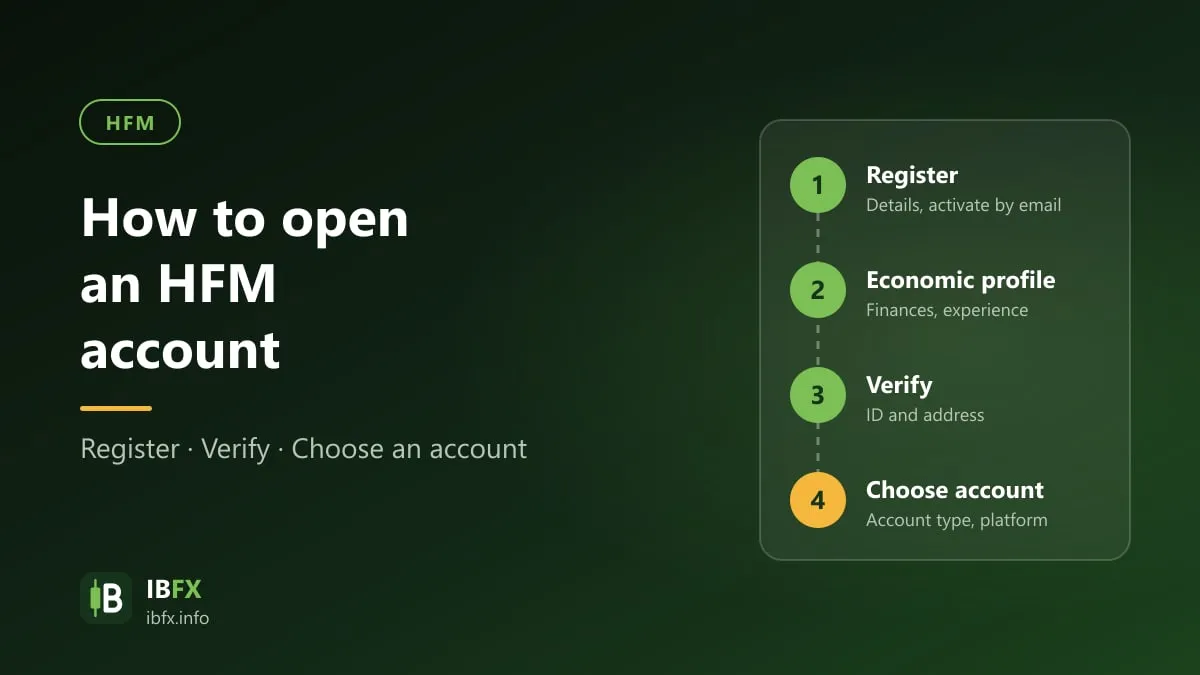
This guide covers opening a trading account at HFM (HotForex) on a computer and on a phone: registering the myHF wallet, verifying it, completing your profile and choosing a live or demo account, together with the terms worth knowing before you deposit.
The article was written in 2023 and updated on Sep 14, 2026 from the international HFM website, the myHF sign-up page and the Client Agreement (the July 2026 version). The screenshots in this guide are of the 2023 interface; the interface today may look different, but the sequence is the same.
Before you open an account: read the HFM review and Is Forex trading legal in Vietnam?. International clients who sign up through the HFM website contract with HF Markets (SV) Ltd in St. Vincent & the Grenadines, a company that holds no brokerage license. Declare only true information about yourself, and start with a demo account.
What to know before you sign up
From the Client Agreement of HFM:
- Each person may have one myHF wallet only. Creating several wallets, whether in your own name, with variations on your personal details or with the identity of somebody else, counts as a breach of the agreement; the broker may terminate every related account, cancel profits and cancel bonuses (section 10.9). If you forget your password, use the “Forgot password” function rather than registering again.
- Your information has to be true and up to date. You are responsible for the accuracy of what you declare, including your experience and your financial situation (section 10.6). The broker may check your details against third-party databases at any time.
- The broker has the right to refuse you. HFM is not obliged to accept you as a client and does not have to give a reason (section 10.1). An application pending for more than 3 months may be closed (section 10.7).
- Do not use an account on behalf of somebody else. Depositing from, or withdrawing to, a bank account, card or wallet that is not in your name is forbidden.
Getting your documents ready
According to the HFM FAQ, a live account needs at least two kinds of document:
- Proof of identity: a color scan or photograph, still valid, in PDF or JPG format, of your passport. If you have no passport, another photo ID such as a national identity card or a driver’s license (both sides).
- Proof of address: a bank statement or a utility bill (electricity, water, internet) no more than 6 months old, showing your full name and your real address clearly.
The name on the identity document has to match the name on the proof of address. Photograph them sharply, with all four corners in frame and no glare; a blurred or cropped image is the most common reason for an application being sent back.
Opening an account on a computer
Step 1: Go to the HFM website
Go to the official HFM website (there is an account opening button at the end of this article too), then click Open Live Account at the top right of the screen.
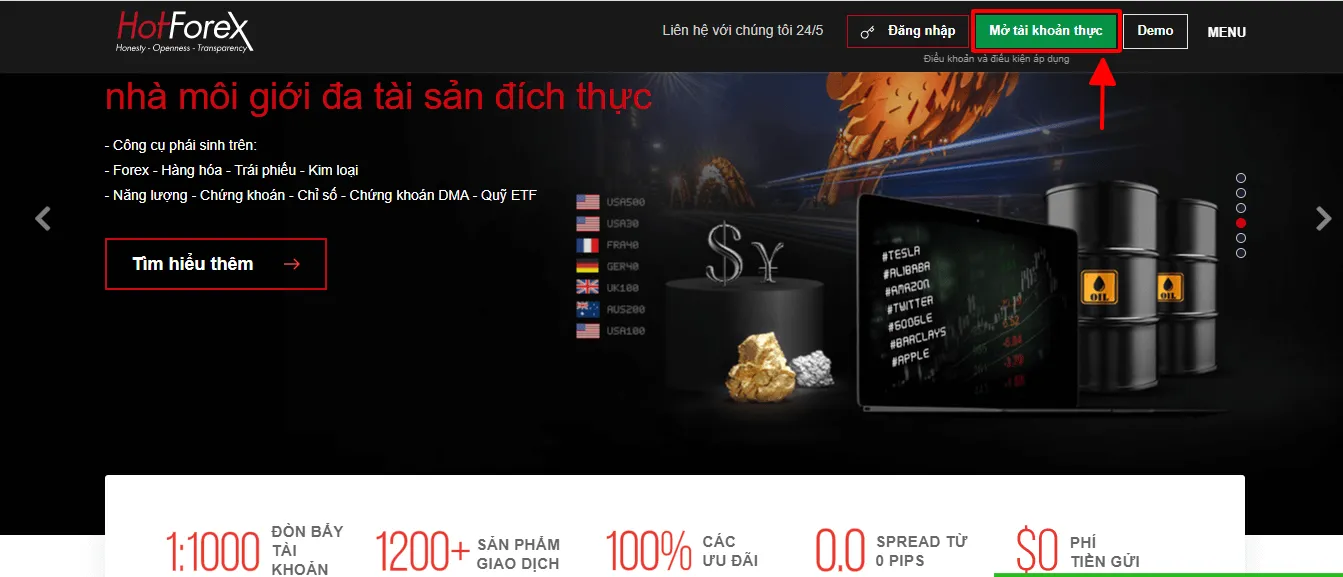
The screenshot shows the Vietnamese-language interface; the buttons and labels sit in the same places in the English one.
Step 2: Fill in the registration details
Choose the individual account type, then fill in:
- Country of residence.
- Phone number.
- First and last name, exactly as on your identity document (the sign-up page accepts Latin characters only).
- The email address you use regularly.
- Date of birth.
- A password. The current myHF sign-up page suggests: 6 to 15 characters, with upper and lower case letters and at least 1 special character.
Tick the box “I have read and accepted the privacy policy”, then click Register.
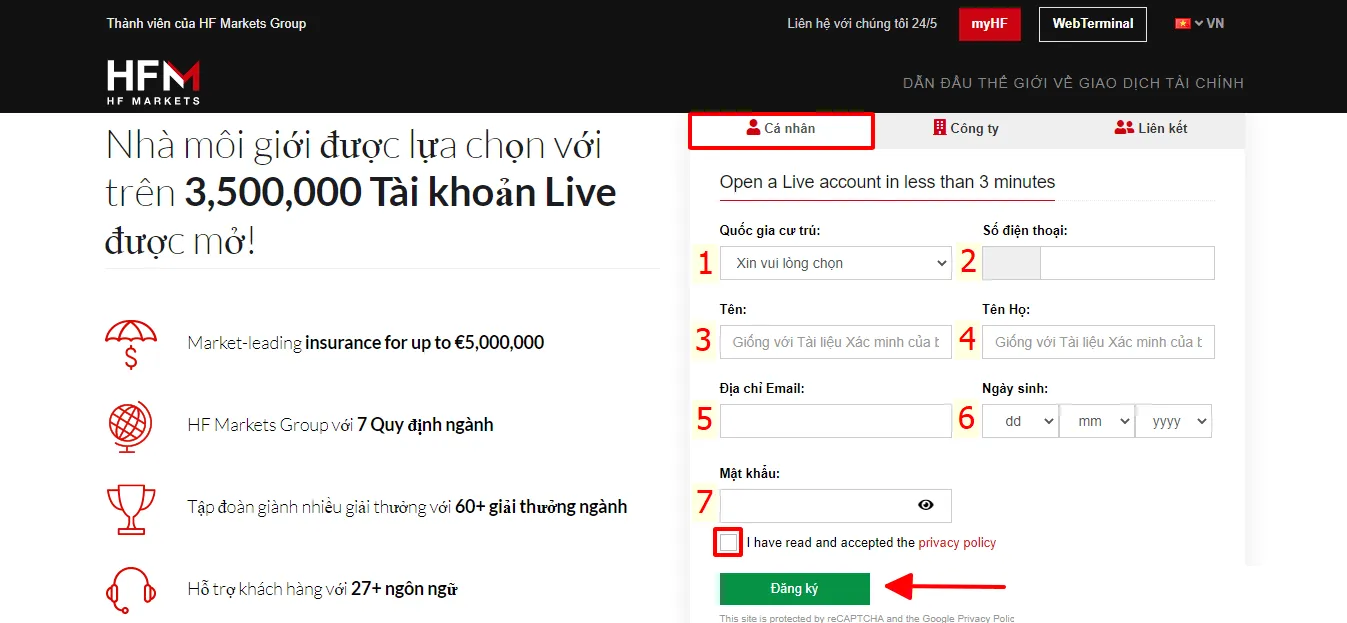
The screenshot shows the Vietnamese-language interface; the buttons and labels sit in the same places in the English one.
Step 3: Verify your email and phone number
In 2023, once you had registered you saw a confirmation that the registration had gone through, opened your email and clicked the button to activate the account. The myHF page today uses a 6-digit code sent to your email to verify the email address, and has a step that verifies your phone number with a 6-digit code sent by text message.
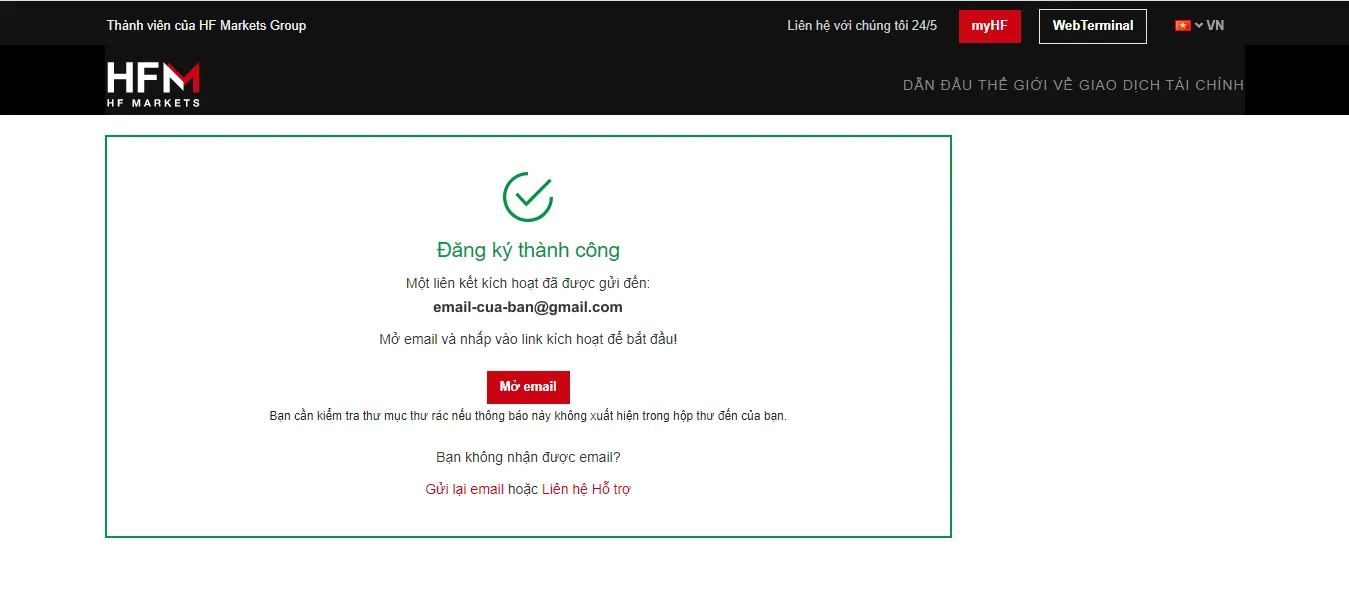
The screenshot shows the Vietnamese-language interface; the buttons and labels sit in the same places in the English one.
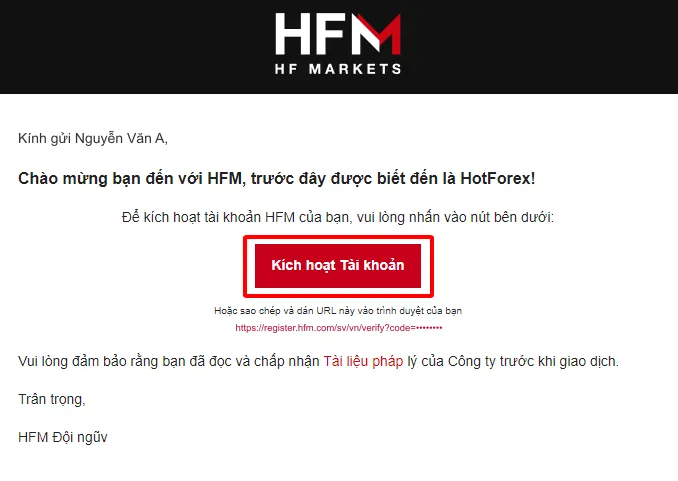
The screenshot shows the Vietnamese-language interface; the buttons and labels sit in the same places in the English one.
Do not give the verification code to anyone. If the email does not arrive, check the spam folder before asking for it to be sent again.
Step 4: Complete your personal details
On the profile page, add:
- Personal details: country of residence, gender.
- Address: address line 1 (required), line 2 (optional), town or city, province, postal code (you can look a Vietnamese one up at mabuuchinh.vn). Enter exactly the address on the proof of address you are going to upload.
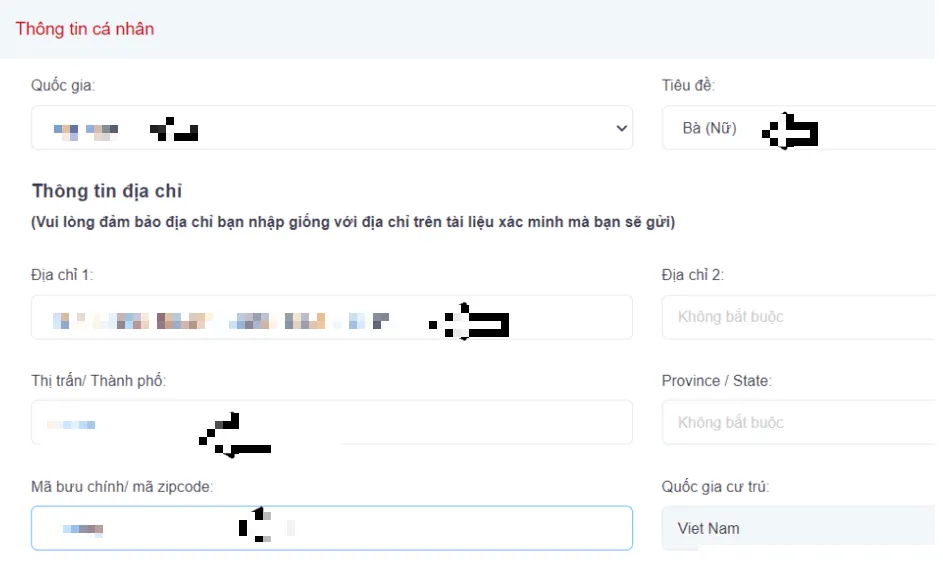
The screenshot shows the Vietnamese-language interface; the buttons and labels sit in the same places in the English one.
Choose the currency of the myHF wallet (USD, for instance), then click Save and continue.
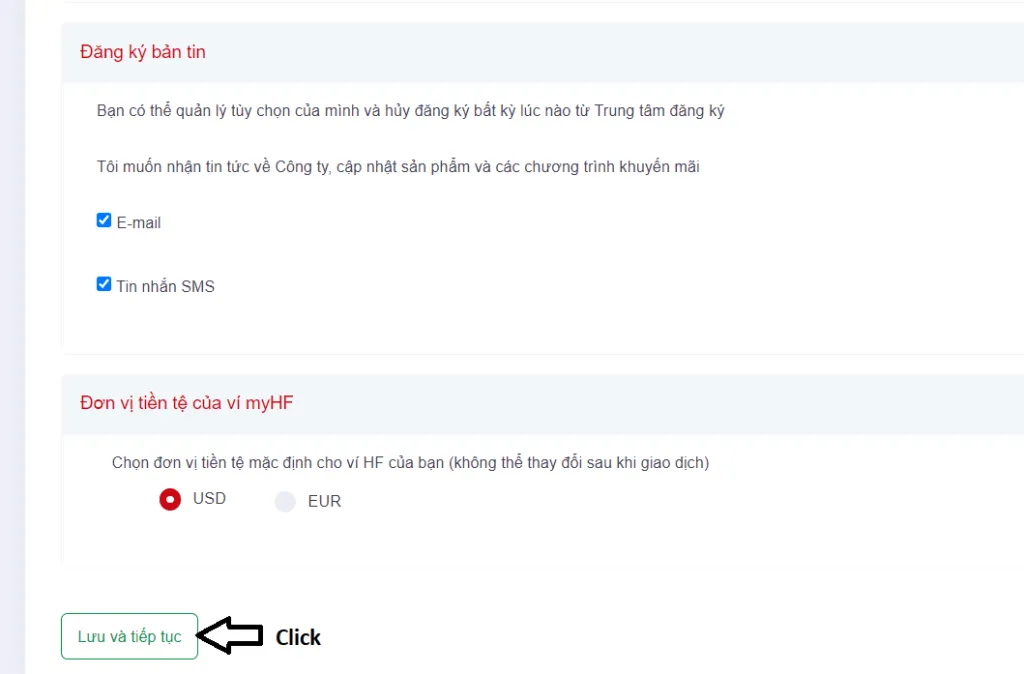
The screenshot shows the Vietnamese-language interface; the buttons and labels sit in the same places in the English one.
Step 5: Complete the economic profile
Answer the questions about:
- Source of income.
- Level of education.
- Employment status.
- The source of the money you will invest.
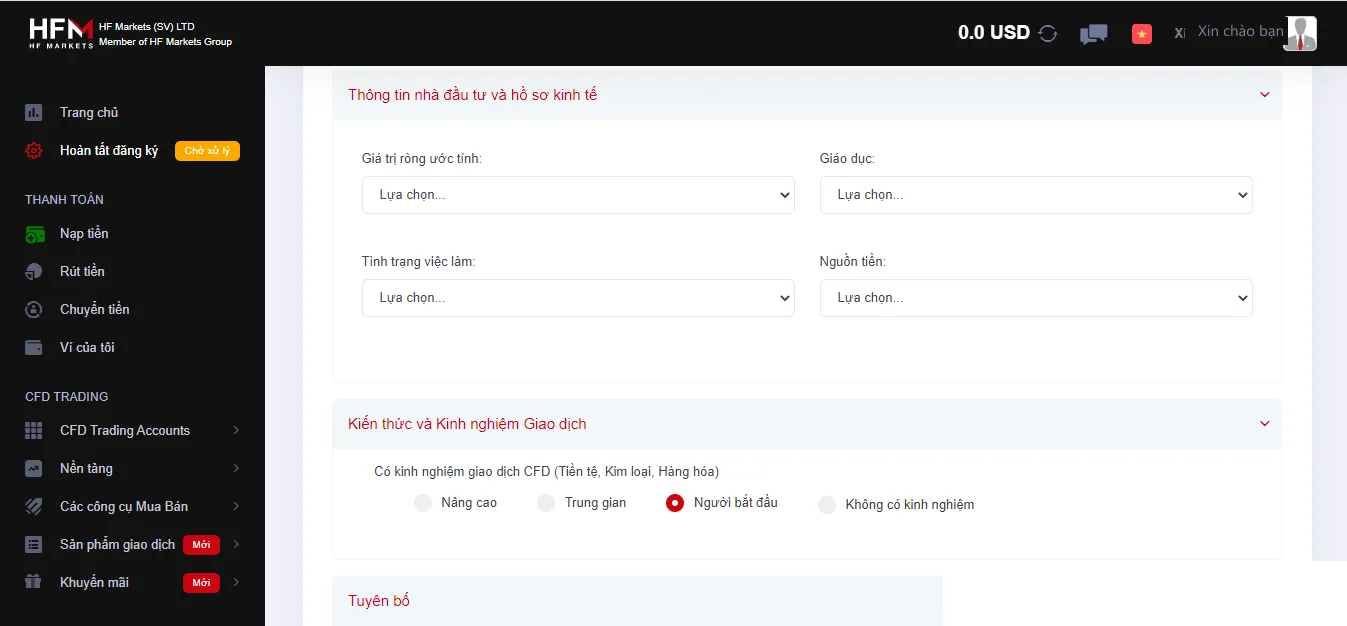
The screenshot shows the Vietnamese-language interface; the buttons and labels sit in the same places in the English one.
In the trading experience section, choose the level of experience you actually have, answer the Yes or No questions, then tick the box accepting the Terms and Conditions.
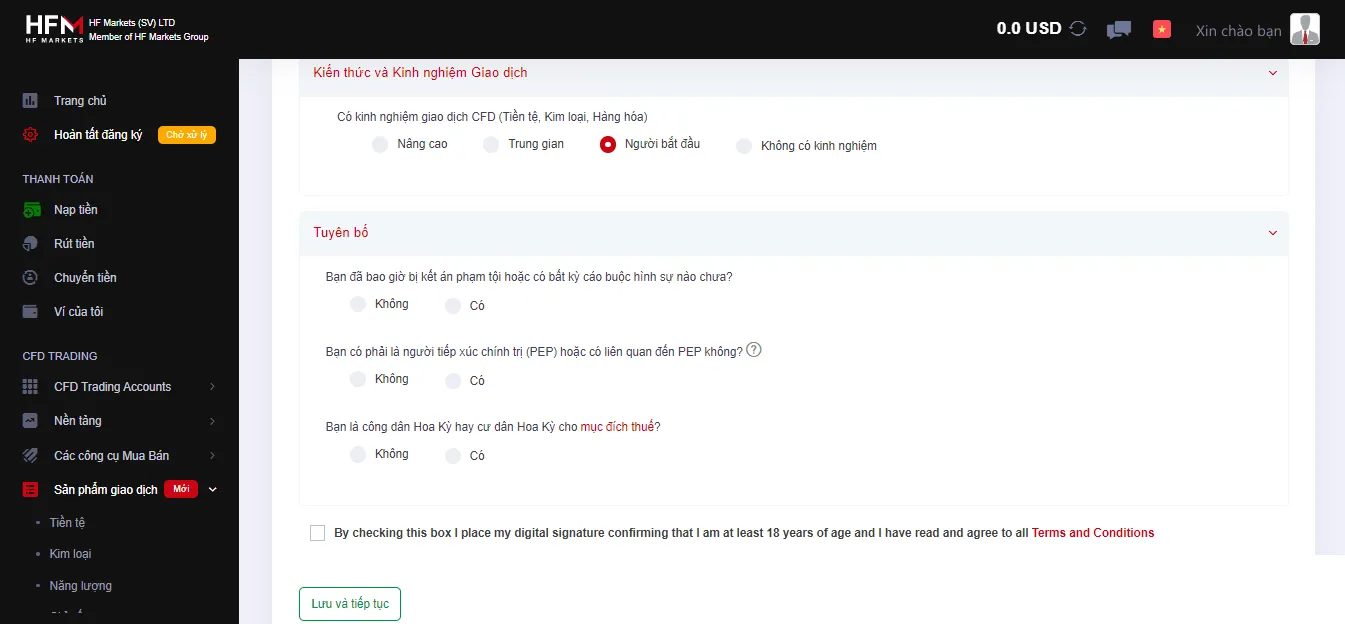
The screenshot shows the Vietnamese-language interface; the buttons and labels sit in the same places in the English one.
Answer honestly. Overstating your experience or your income to “get through a step” does nothing for you, and false information is a breach of the agreement. Before you tick the acceptance box, open the Client Agreement and read it, at least the parts on the legal entity, swap-free trading, dormant accounts and withdrawals.
Step 6: Verify the account
Identity verification: choose the country that issued the document, choose the document type (a national identity card, for instance), then choose how to upload it: photograph it with your phone, photograph it through a webcam, or upload an image file you already have.
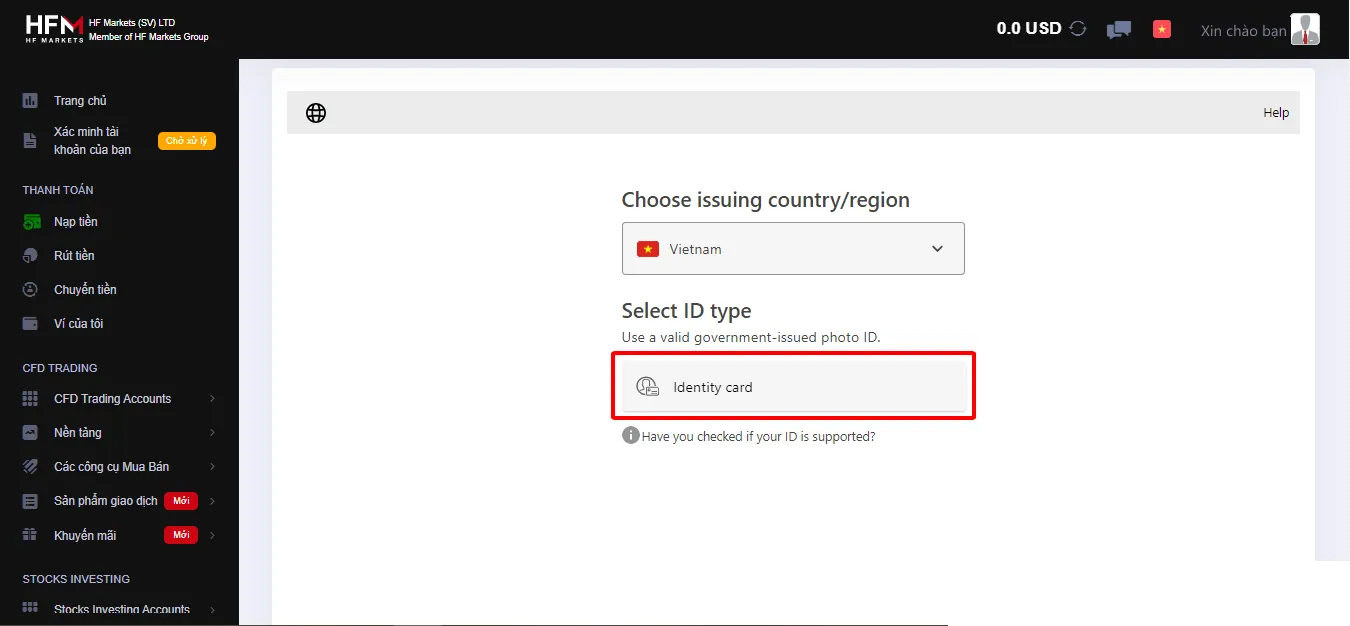
The screenshot shows the Vietnamese-language interface; the buttons and labels sit in the same places in the English one.
If you upload a file you already have, click “Choose file”, select the image of the front, click “Confirm”, then do the same with the back.
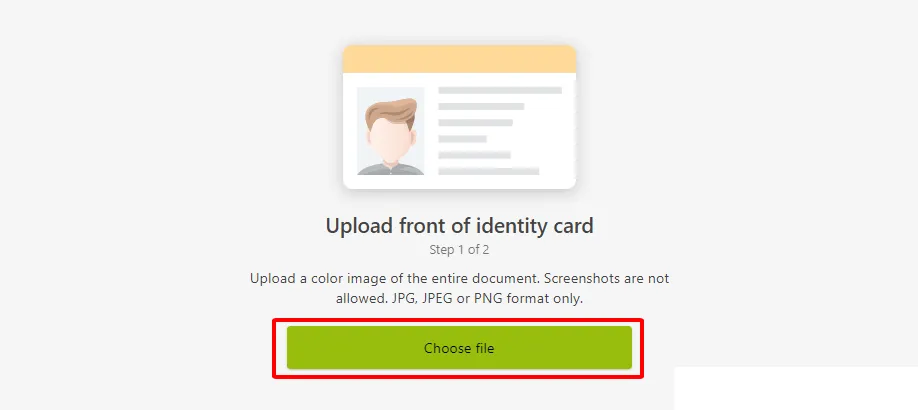
Address verification: upload a utility bill or bank statement showing the name and address you declared, then click Upload.
Under the Client Agreement, a retail client may also use electronic verification by entering the details on their identity document, where myHF offers that option (section 10.4). According to the HFM FAQ, documents are checked within 48 hours.
The “Partially Verified” status: myHF has a partially verified status. Under section 10.8 of the Client Agreement, a partially verified client may deposit and trade before submitting the full set of documents, but under limits (a maximum deposit amount, the deposit methods, the number of trading accounts, promotions, tools, a time limit) and may not withdraw until the documents are fully approved. So complete the verification before you deposit.
Step 7: Open a trading account
In the CFD trading accounts section, choose to open a live or a demo account.
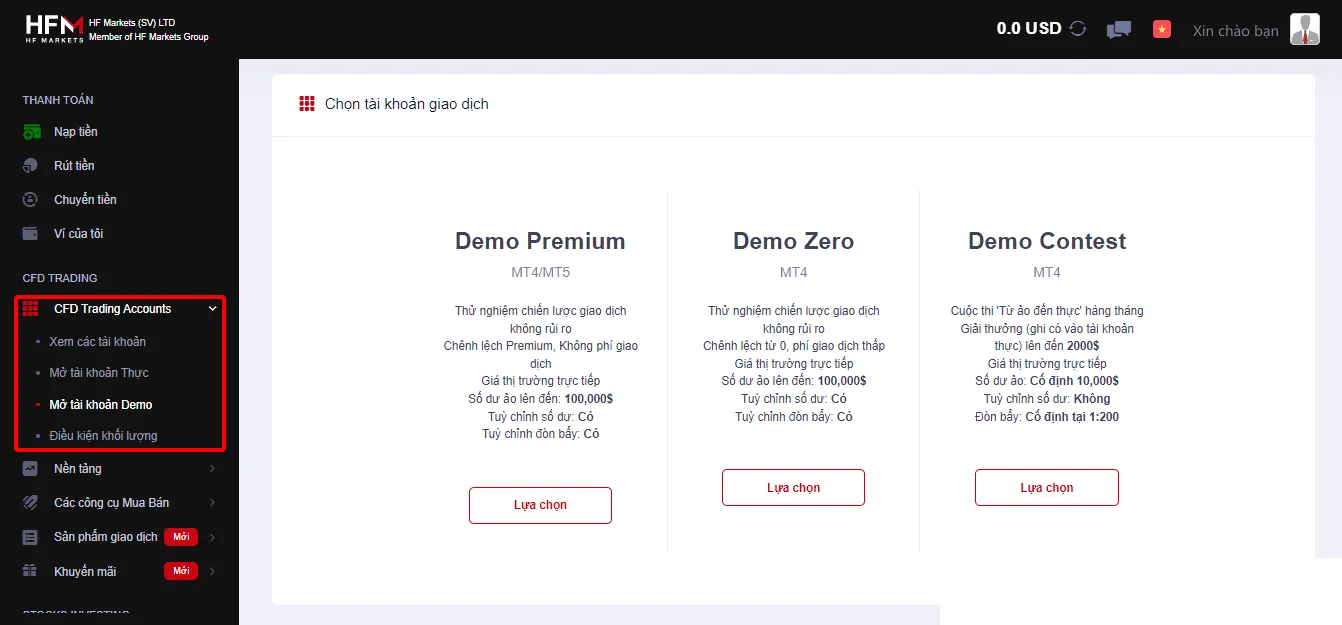
The screenshot shows the Vietnamese-language interface; the buttons and labels sit in the same places in the English one.
A live account: choose the account type (Cent, Premium, Pro, Zero or Top-up Bonus), the MT4 or MT5 platform, the leverage, then create a password for the trading account. A few things to note as you choose:
- Compare the costs, the minimum deposit and the conditions of each type in HFM account types. The Top-up Bonus account has a lot of conditions on the bonus money that need reading closely.
- DMA shares and ETFs are only available on MT5, WebTrader and the HFM app, not on MT4.
- Pick low leverage from the start. You can increase leverage at any time, but you can only reduce it when no margin is in use or the margin level is above 100% (section 18.4).
A demo account: choose the platform, the leverage and the virtual balance, accept the terms, then click Open Demo Account.
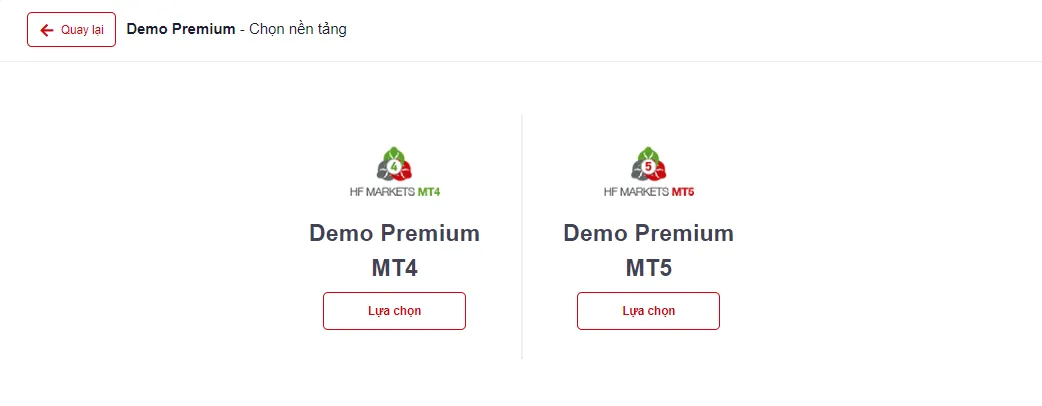
The screenshot shows the Vietnamese-language interface; the buttons and labels sit in the same places in the English one.
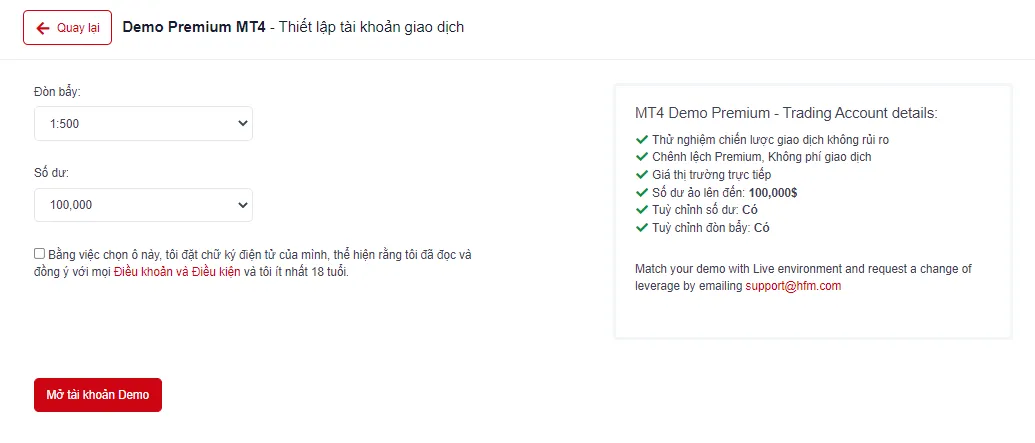
The screenshot shows the Vietnamese-language interface; the buttons and labels sit in the same places in the English one.
The rules on demo accounts, under section 28 of the Client Agreement: the virtual balance can be adjusted (increased up to 3 times a day, with a balance of no more than 10 million USD; reduced up to 2 times a day), a Demo Premium account is only valid for 60 days, and a demo account inactive for 29 days is deleted without notice. Set the demo balance close to the amount you actually intend to deposit, so that you practice with the right position sizes.
Once the account is open, you receive the platform login details by email: the account ID, the trading password and the server name. The next thing to do is deposit and transfer money from the myHF wallet to the trading account.
See also: The HFM deposit and withdrawal guide
Opening an account on a phone
There are two ways:
- The HFM app (recommended): download the HFM app from Google Play or the App Store, register or sign in, then open a live or demo trading account inside the app. The app manages the wallet and several trading accounts, deposits and withdrawals, and order entry. Download the app only from the official app stores, and check the name of the developer.
- A phone browser: the steps are exactly the same as on a computer. The screenshots below are of the 2023 phone interface.
Step 1: go to the HFM home page on your phone (there is an account opening button at the end of this article too) and tap to open an account.
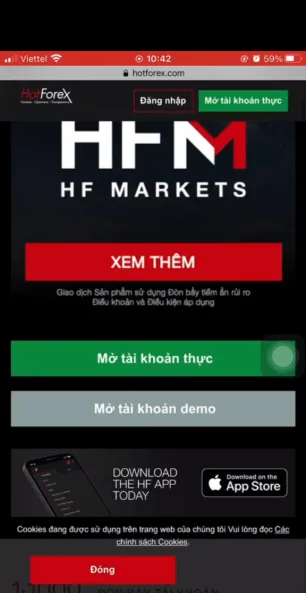
The screenshot shows the Vietnamese-language interface; the buttons and labels sit in the same places in the English one.
Step 2: fill in the registration details, as in step 2 on a computer.
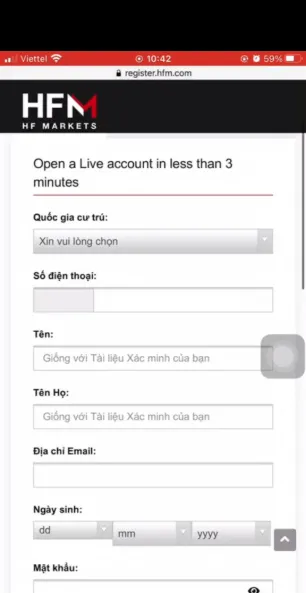
The screenshot shows the Vietnamese-language interface; the buttons and labels sit in the same places in the English one.
Step 3: verify your email (today with a 6-digit code).
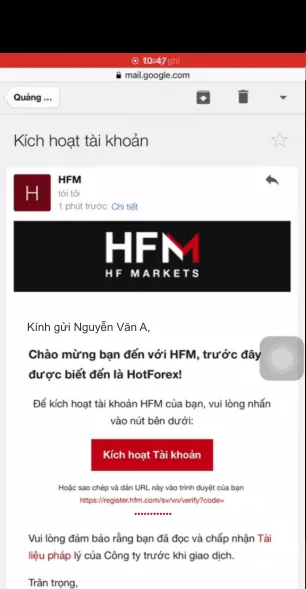
The screenshot shows the Vietnamese-language interface; the buttons and labels sit in the same places in the English one.
Step 4: complete your personal details and address.
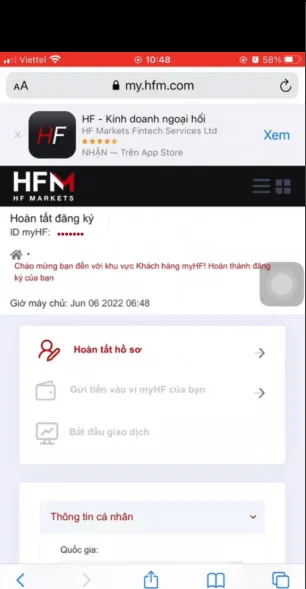
The screenshot shows the Vietnamese-language interface; the buttons and labels sit in the same places in the English one.
Step 5: complete the economic profile.
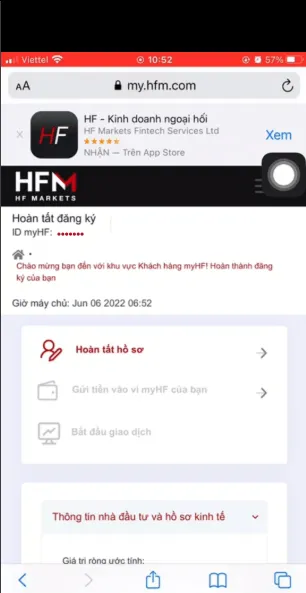
The screenshot shows the Vietnamese-language interface; the buttons and labels sit in the same places in the English one.
Step 6: verify your identity and address with the phone camera or an image you already have, then open a trading account as in step 7 on a computer.
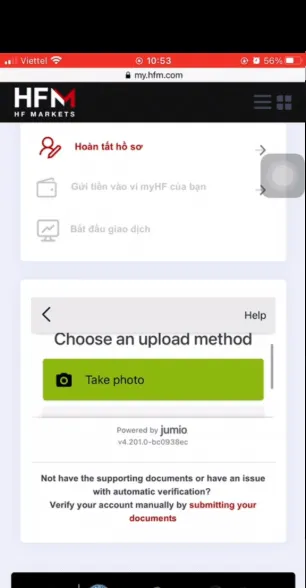
The screenshot shows the Vietnamese-language interface; the buttons and labels sit in the same places in the English one.
Keeping your account safe
- Turn on two-factor authentication. The myHF sign-in page has a step for a 6-digit code from an Authenticator app, so you can turn two-factor authentication on in the security section of your account.
- Sign in at the right address. Sign in to myHF only from the official website or the HFM app; there are many sites online impersonating the broker.
- Never share your password or a verification code with anyone, including anyone claiming to be an HFM employee, an IB or an “expert” helping you trade.
- Do not let anyone else trade for you. Somebody who takes on a “managed account” or asks for your trading account password to “hold the position for you” is a sign of a scam. See how to spot Forex scams.
In closing
Opening an HFM account takes about 10 to 15 minutes if you have your documents ready, plus the wait of up to 48 hours for the documents to be approved. Three things to remember: create one myHF wallet only, with true information; complete the verification in full before you deposit (a partially verified client cannot withdraw); and pick low leverage as soon as you open the trading account. If you have never traded, practice on a demo account first.
Read more: the HFM review, HFM account types and the HFM deposit and withdrawal guide.