On this page
- How to use MT4 on an Android phone
- Step 1: download the MT4 app
- Step 2: log in to MT4
- How to add currency pairs in the MT4 app
- How to display an MT4 chart on Android
- How to change the MT4 timeframe on your phone
- How to place an order in MT4 on an Android phone
- How to close a position in MT4 on your phone
- Adding an indicator to MT4 on your phone
- How to draw a trendline in MT4
- How to delete a trendline on your phone
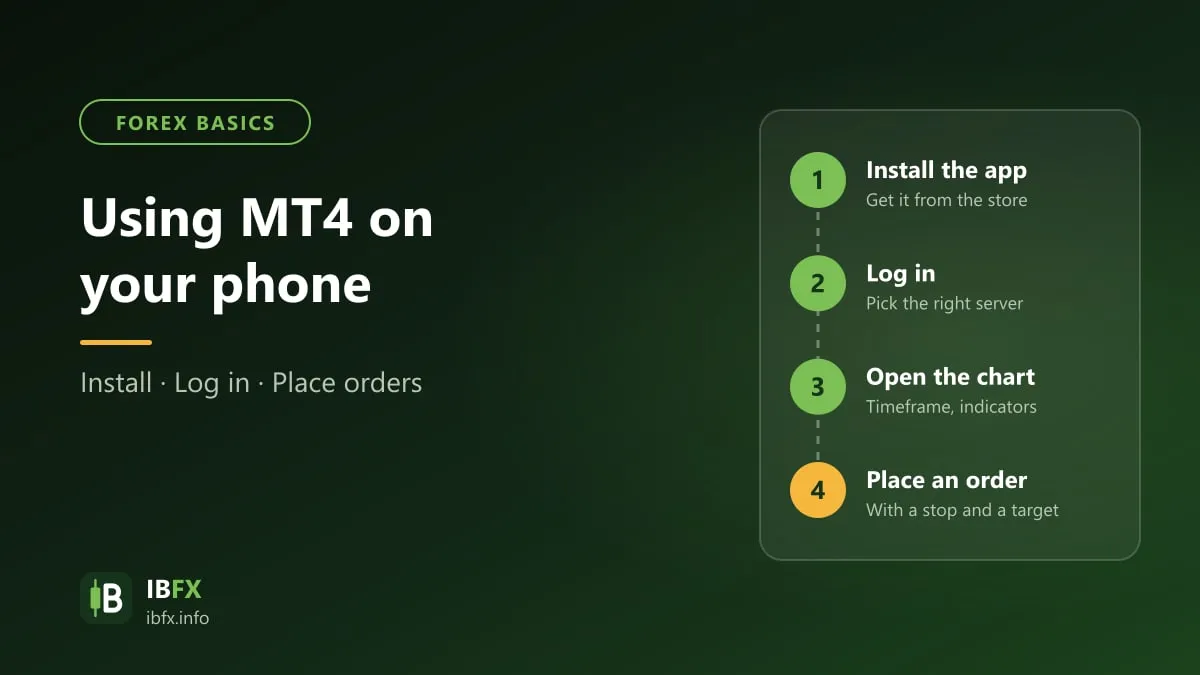
Getting really fluent with the MT4 app is 1 of the first lessons every trader has to learn before trading forex. The desktop version of MT4 is quite different from the phone version, and the iPhone build differs a little from the Android one, so IBFX has written the guide below to walk you through using MT4 on your phone. At many brokers, a new account now runs on MT5 only; the MT5 interface on a phone is close to MT4 as well. Let’s go through it together.
How to use the MT4 app on a computer
How to use MT4 on an Android phone
The steps below were captured on the Android version. The iPhone version has the same features but the touch gestures differ a little — the ring of tools that appears when you press and hold the chart, for instance, belongs to the Android version; the iPhone does not have it.
Step 1: download the MT4 app
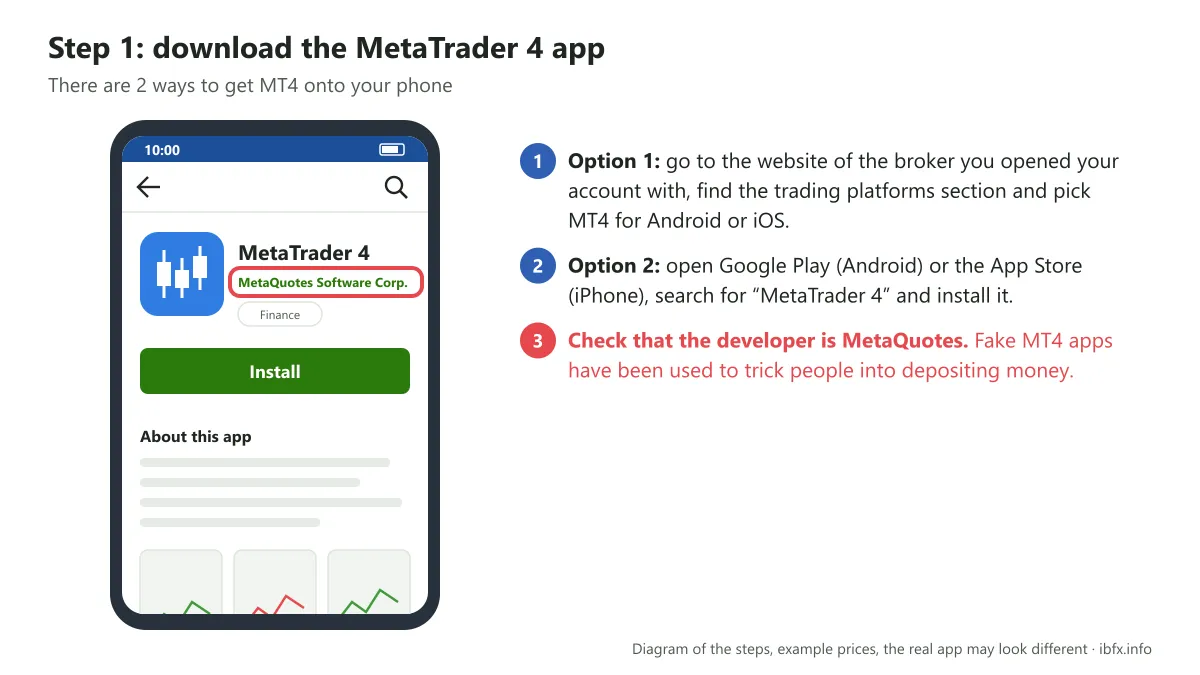
There are 2 ways to get the MT4 app onto your phone at the moment:
Option 1: go straight to the website of the broker you registered your account with (every broker has this section), go to the trading platforms section and pick MT4 for Android or for iOS, and you can download it from there.
Option 2: open Google Play (Android) or the App Store (iPhone), search for “MetaTrader 4” from the developer MetaQuotes and install it. Check the developer name carefully, because there have been a good many fake MT4 apps used to trick people into depositing money.
Step 2: log in to MT4
Once the installation is finished, the New Account section shows two parts: open a demo account, and login to an existing account. Tap login to an existing account, then search for the forex broker you registered your account with and sign in.
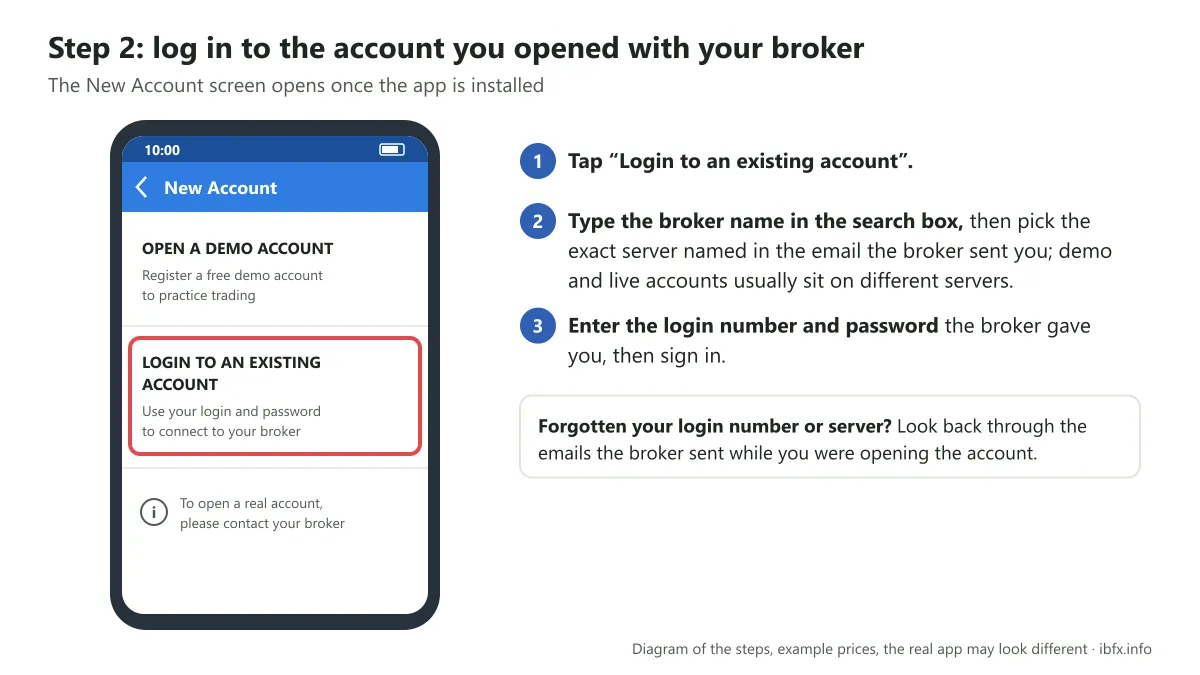
Note: 1 broker has a great many different servers. If you have forgotten the login number and the server the broker gave you, you can go back and look for the emails the broker sent while you were opening the account; one of them gives you all of that information. Then search for the server and enter the login number and the password the broker gave you.
Note: the MT4 app on the 2 operating systems, iOS and Android, differs a little, and from one version to another. Basically, though, the terms and the way the tools are laid out are exactly the same. On top of that, the MT4 app usually displays in whichever language your phone is set to; explore it bit by bit and you will come to understand MT4 and use it fluently.
How to add currency pairs in the MT4 app
Right after you log in, the MT4 app only gives you a certain number of currency pairs. To follow prices conveniently, you should add all of the pairs you want to the Quotes list, by tapping the + icon at the top on your right:
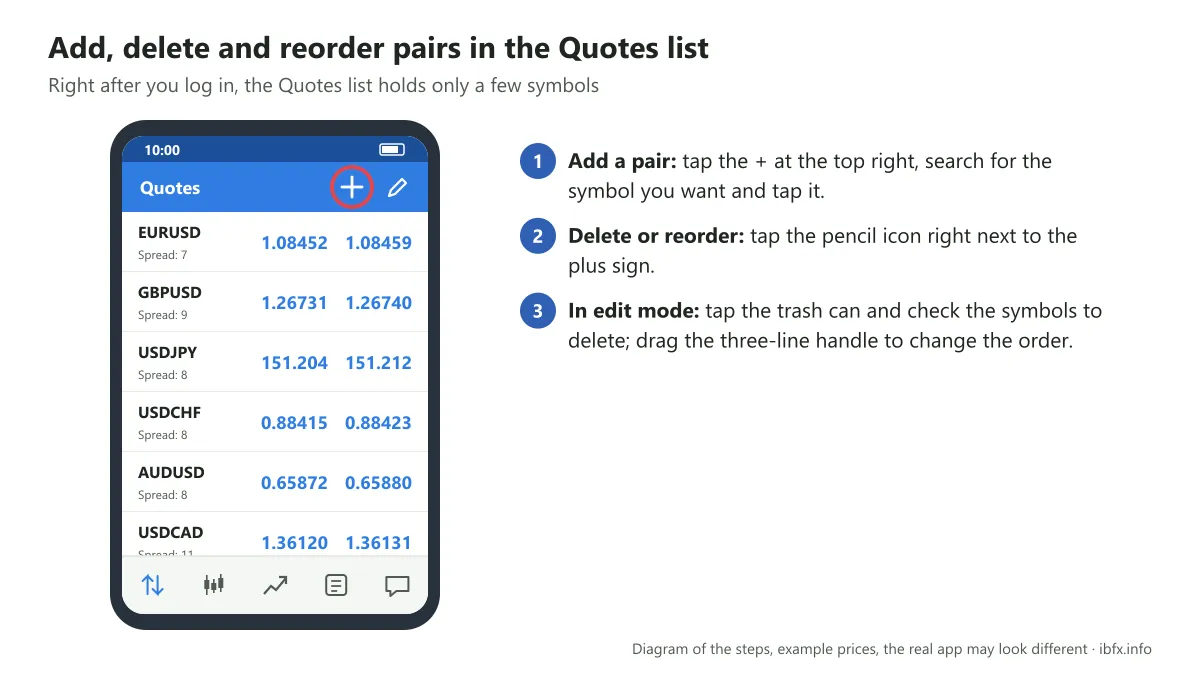
If you want to delete the currency pairs, or put them in the order you want, tap the pencil icon at the top right, right next to the + sign.
Once you have tapped it, if you want to delete, choose the trash can, then check the pair you need to delete and you are done. To put the pairs in order, all you have to do is touch the 3-line icon and move that pair up or down as you like.
How to display an MT4 chart on Android
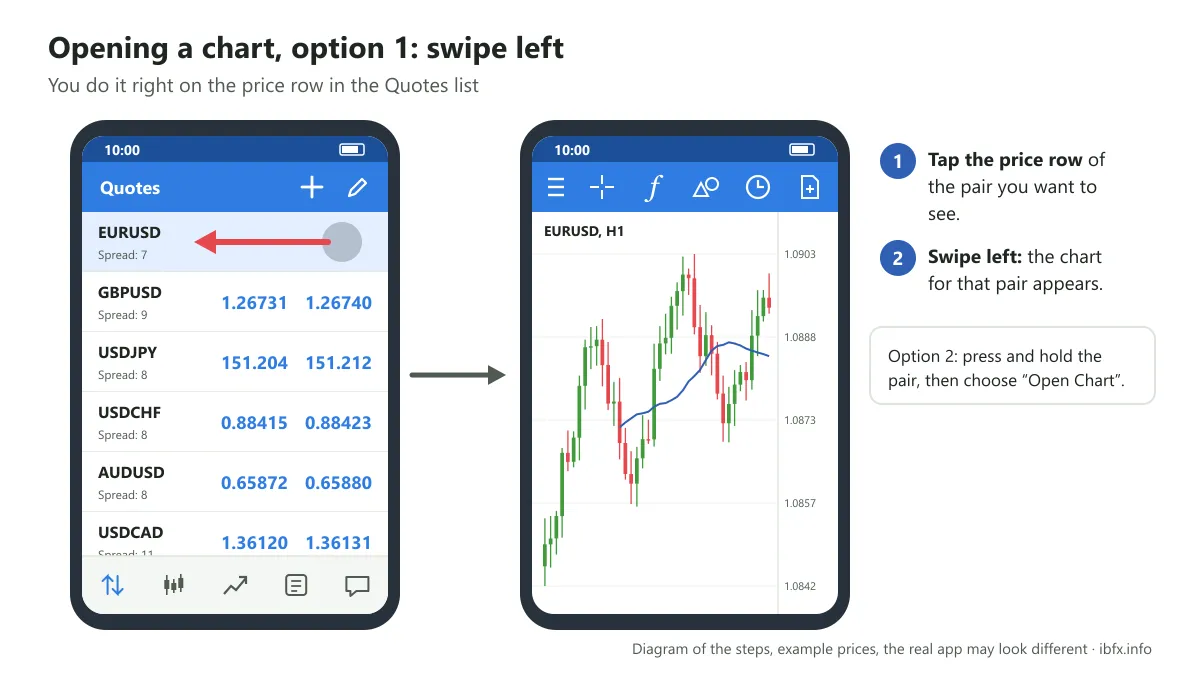
Option 1: tap the currency pair you want to see and swipe left, and the chart appears
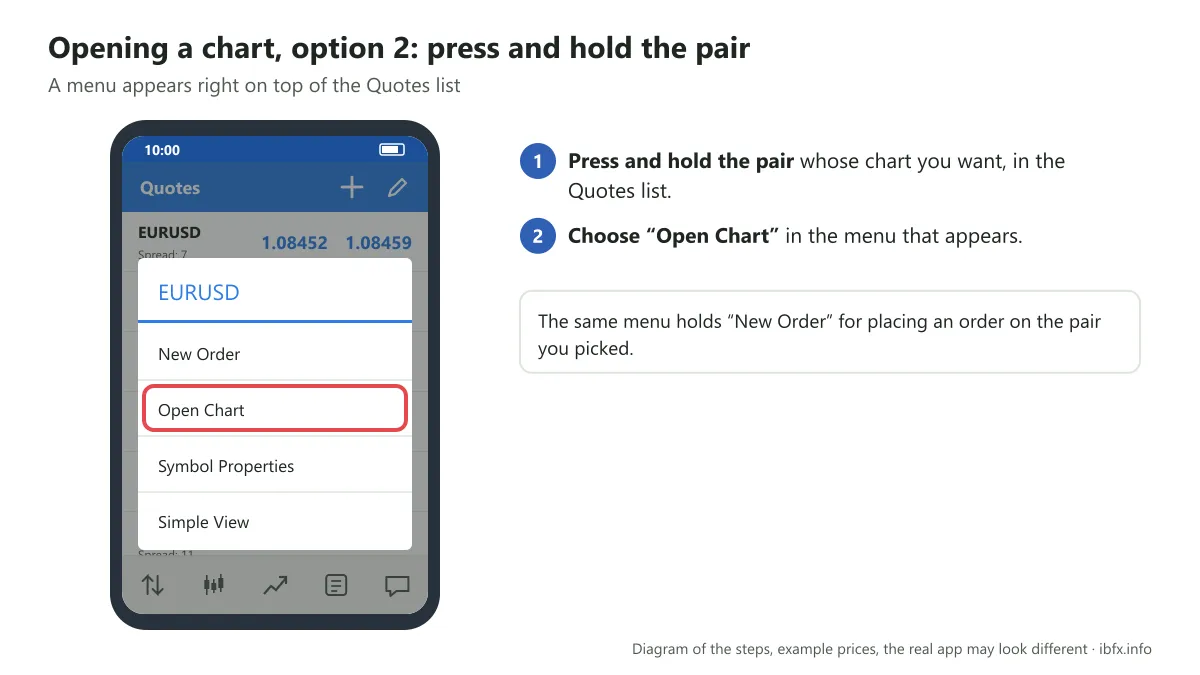
Option 2: press and hold the pair whose chart you want to display, a menu appears, and you choose “Open Chart”.
How to change the MT4 timeframe on your phone
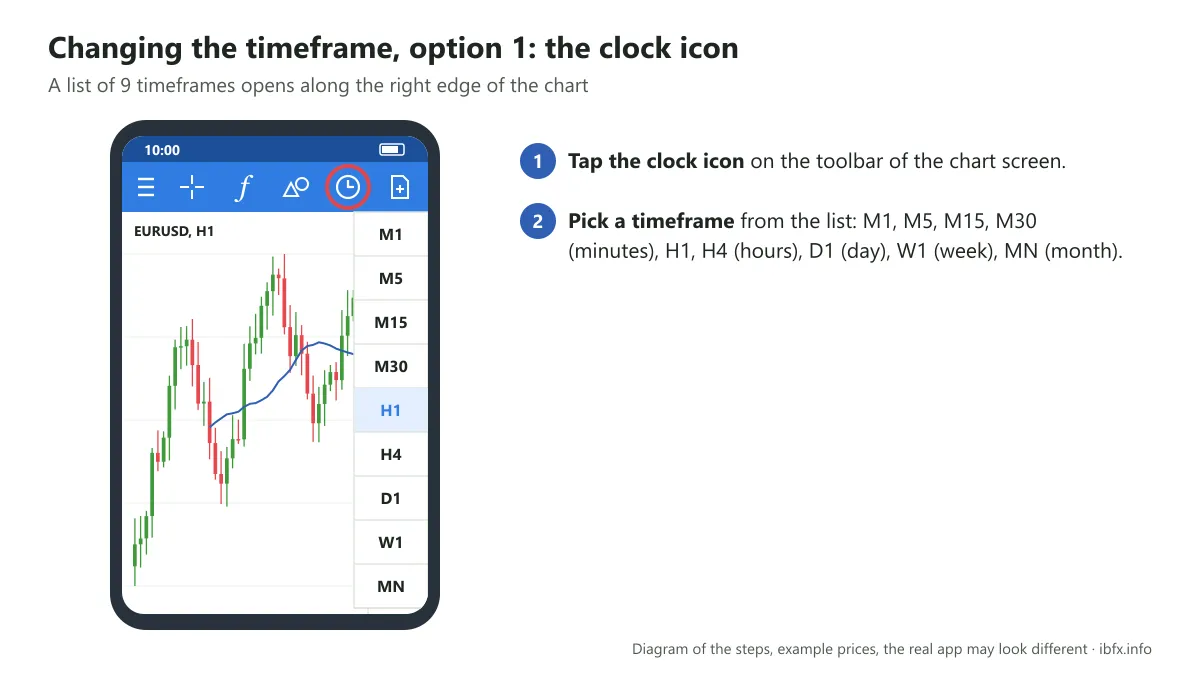
Option 1: once the chart is showing, all you have to do is tap the clock at the top, every timeframe appears, and you tap the one you want.
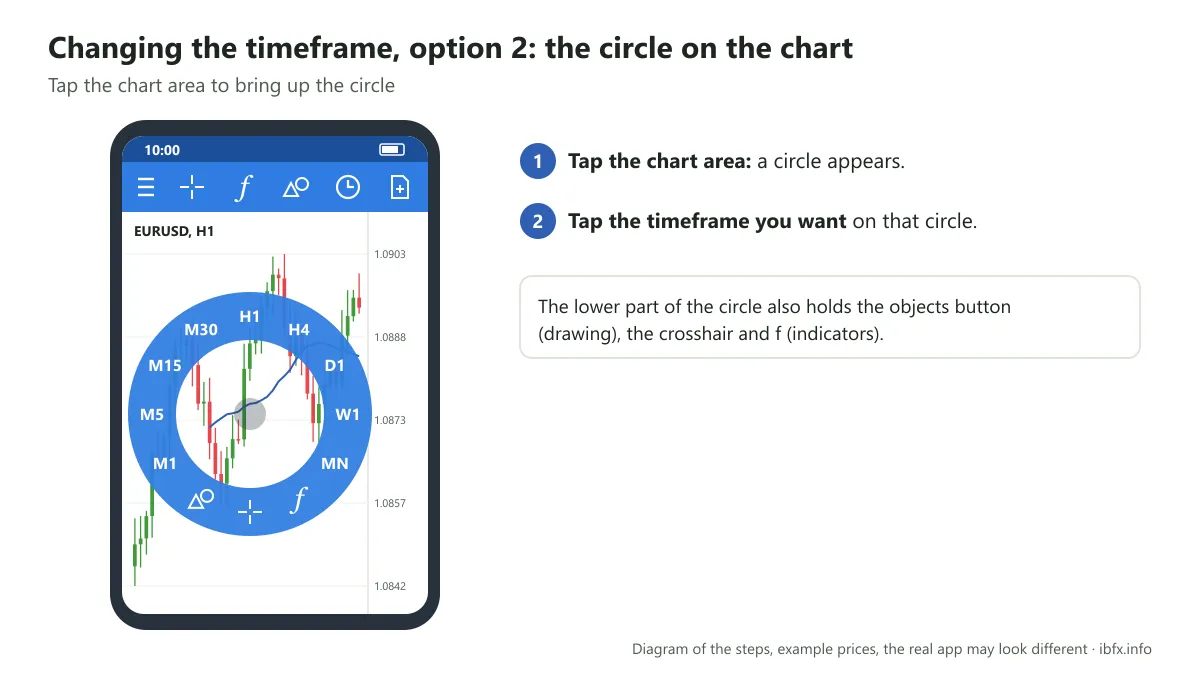
Option 2: tap the chart and a circle appears; the timeframes appear on that circle too, and you can pick the one you want.
How to place an order in MT4 on an Android phone
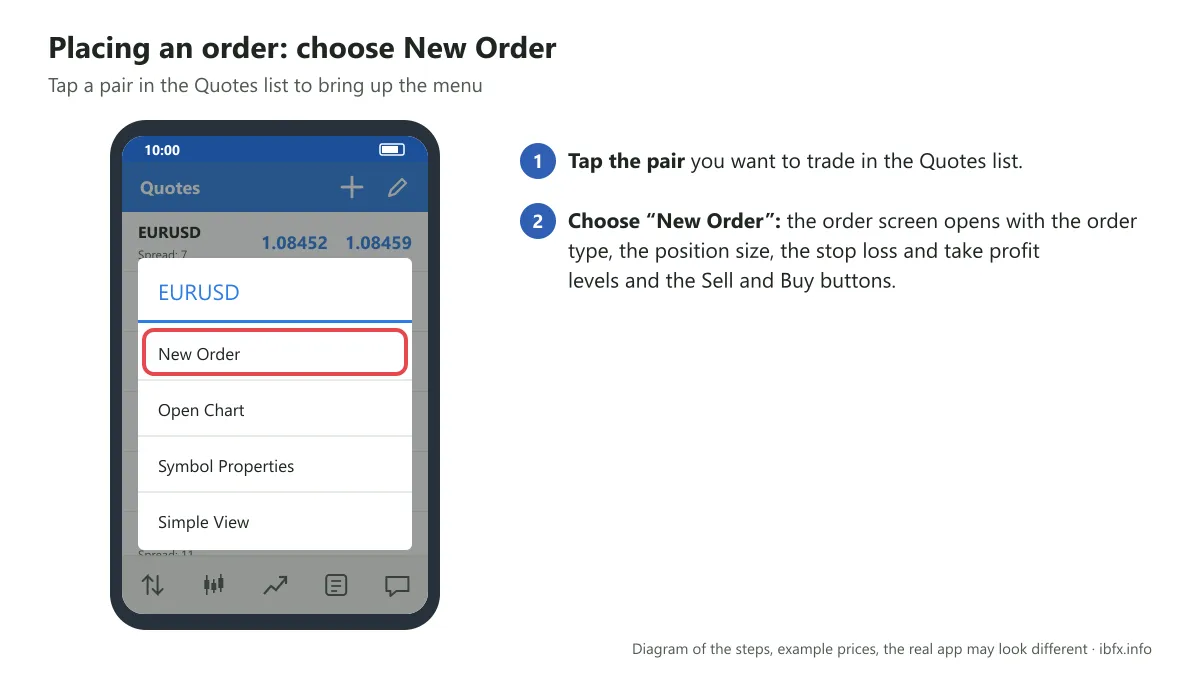
Tap the currency pair and choose the “New Order” line; a screen appears with parts such as the order types used for trading, the stop loss level, the take profit level and the execution buttons (buy or sell).
Once you tap New Order, the screen below appears:
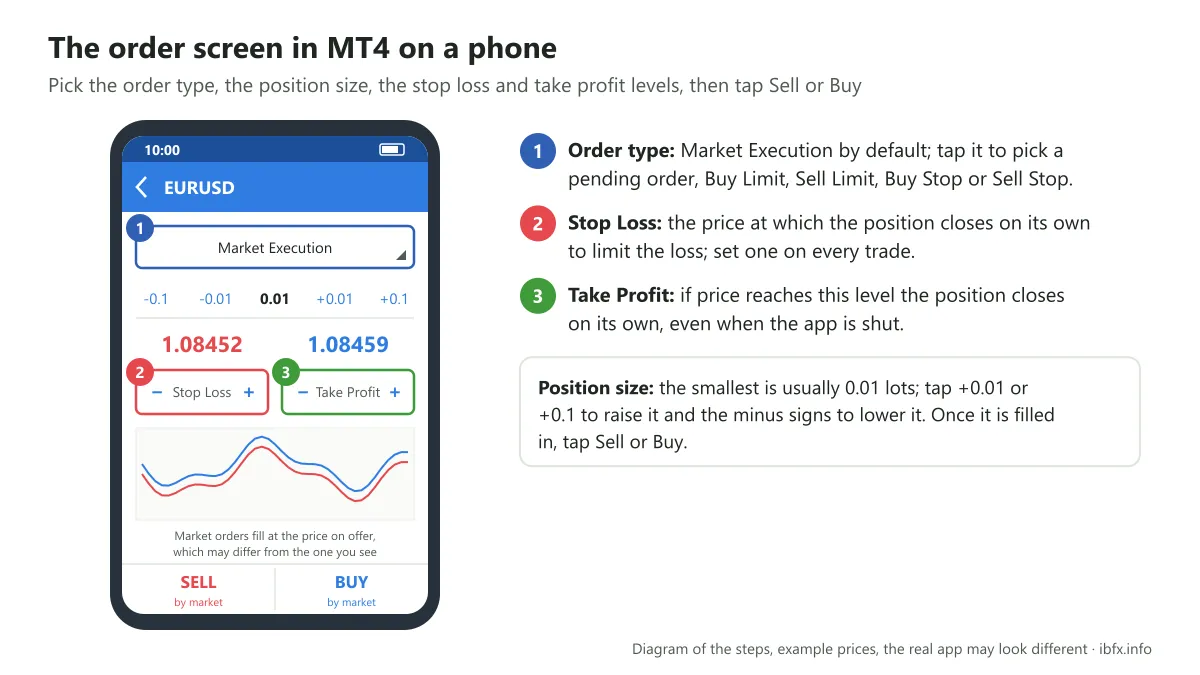
Number 1: the order types used in forex trading.
Number 2: where you set the stop loss level, the thing you have to do if you do not want to blow up your account
Number 3: where you set the take profit; whatever price you expect to take profit at, you can enter it there. If price reaches this level, the position closes automatically, even when you do not have the app open.
Position size
Look at the bar above and you will see that the smallest position size the broker displays is 0.01 lots. If you want to buy or sell, all you have to do is tap +0.01 or +0.1 to raise the position size, and tap the – sign to lower it.
Keep in mind: position size decides how much money you make or lose. On EUR/USD, 1 lot is around 10 USD a pip, while 0.01 lots is around 0.1 USD a pip. On a 100 USD account, a 1 lot position only needs price to go 10 pips against you and the account is gone. A beginner should start with 0.01 lots and size the position so that if the stop loss is hit, you only lose 1–2% of the account. See also: The 2% money management rule.
Once you have finished the 4 items above, tap buy or sell depending on whether you want to sell or to buy, and your order is placed.
The order types used for trading on MT4
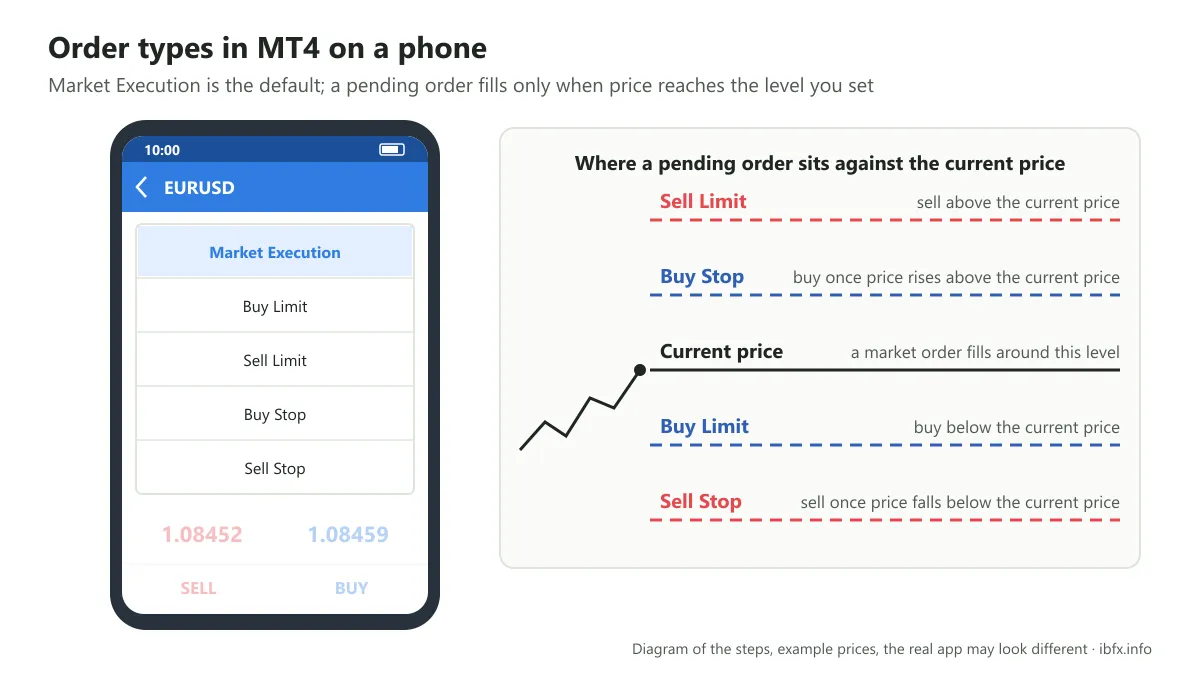
Normally the MT4 app leaves the default as market execution, and when you tap buy or sell your order fills at the price at that moment.
Buy Limit: choose this when you want to buy at a price lower than the current price. You can place a Buy Limit order at the price you want; it may fill or it may not, depending on whether the market runs to the price you set.
Sell Limit: choose this when you want to sell at a price higher than the current price. You can place a Sell Limit order at the price you want; it may not fill, depending on whether the market runs to the price you set.
Buy Stop: choose this when you want to buy at a price higher than the current price. You can place a Buy Stop order at the price you want; it may fill or it may not, depending on whether the market runs to the price you set.
Sell Stop: choose this when you want to sell at a price lower than the current price. You can place a Sell Stop order at the price you want; it may not fill, depending on whether the market runs to the price you set.
How to close a position in MT4 on your phone
When you place an order, you usually go on to set a stop loss and a take profit as well, and when price reaches either of them the position closes for you automatically. In many cases, though, once the order is placed and price has run for a while, you want to close the position because you think price has not gone the right way and may well reverse, or because you reckon that holding it any longer will cost you more money. So you want to close the position.
To do that, all you have to do is tap the rising arrow on the navigation bar at the bottom of the phone screen, as in the picture below:
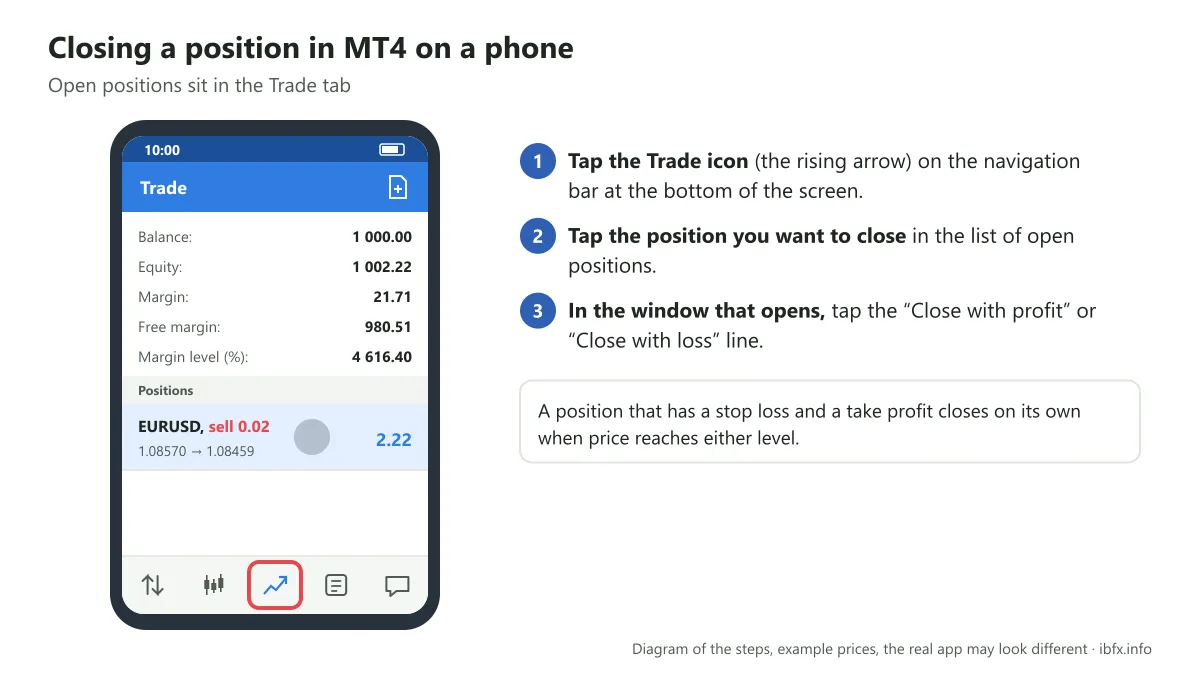
Then pick the position you want to close and tap it; a window appears, and you tap the line that reads “close with profit” or “close with loss” and you are done.
Adding an indicator to MT4 on your phone
An indicator is a tool that supports chart analysis and helps you see the trend and the momentum of price more clearly. No indicator tells you for certain whether price will rise or fall.
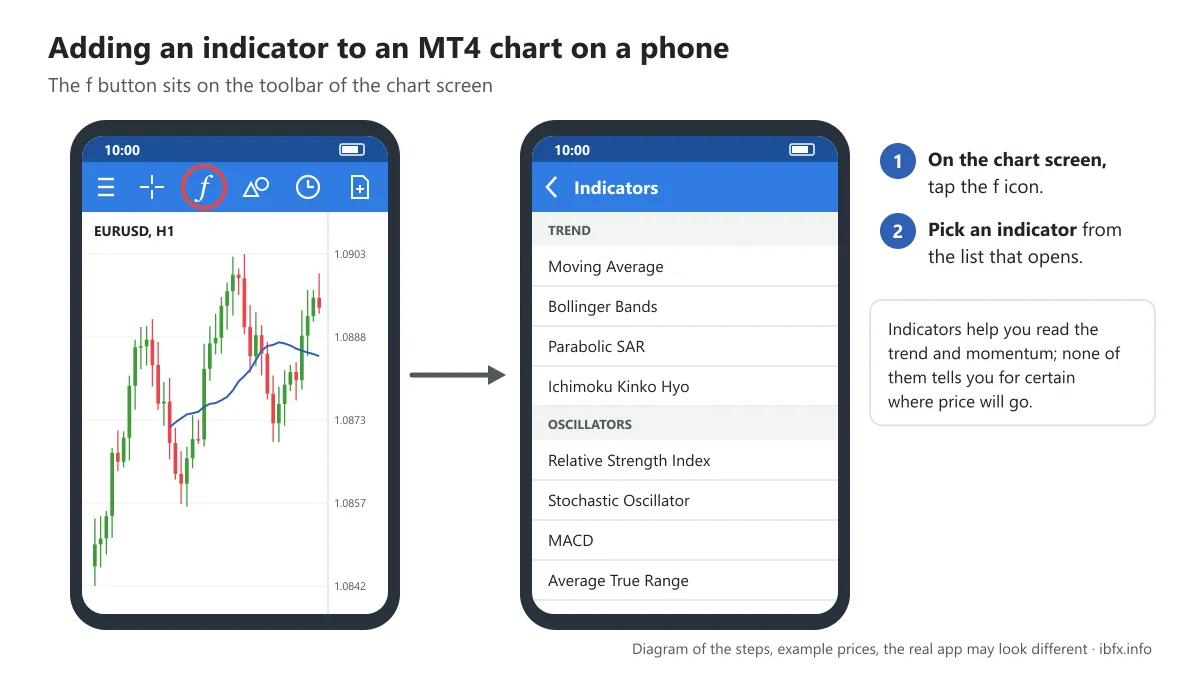
To add an indicator, tap the f icon in the chart window. A list of indicator tools appears, and depending on what each person needs, you pick the indicator that suits you best.
How to draw a trendline in MT4
A trend line, or trendline as it is usually called, is 1 of the basic technical analysis tools; it helps you see the trend clearly and check it against the signal from an indicator.
To draw a trendline, all you have to do is tap the screen, a circle appears, and you choose the objects icon shown in the picture below:
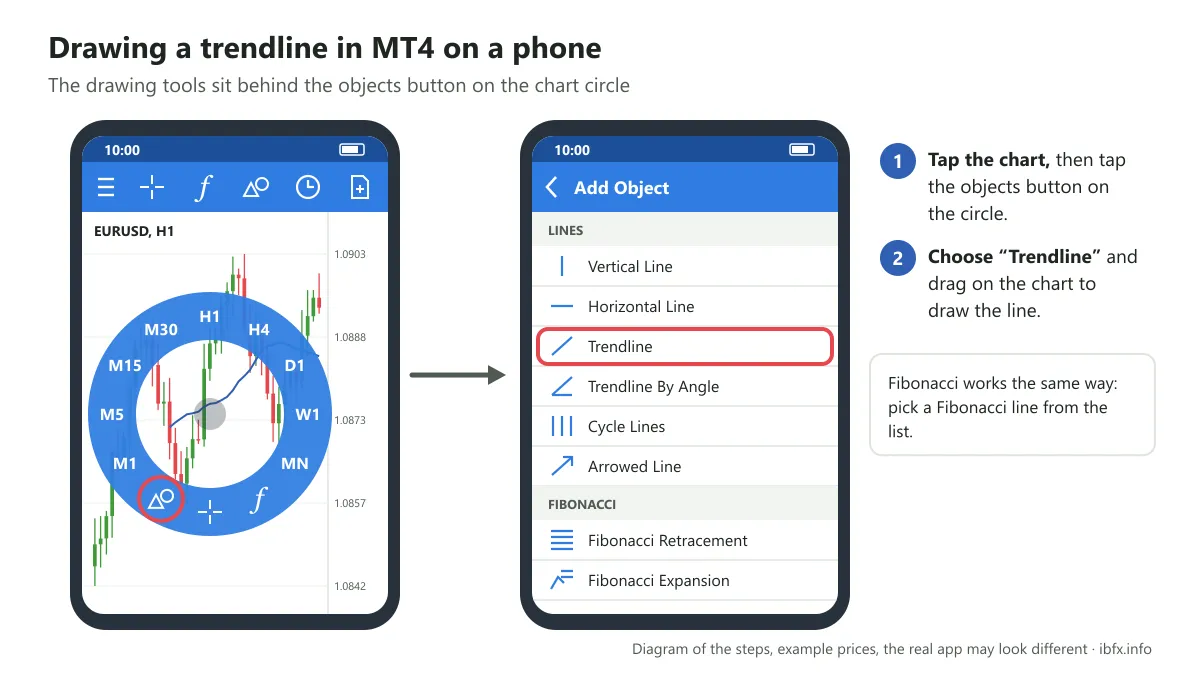
Then choose the Trendline line; once you have tapped it, the chart of the pair you are analyzing appears, and you touch the chart and draw the trendline you want.
Fibonacci works in the same way as the trendline: you tap the objects icon too, choose the Fibonacci line and draw it as you like.
How to delete a trendline on your phone
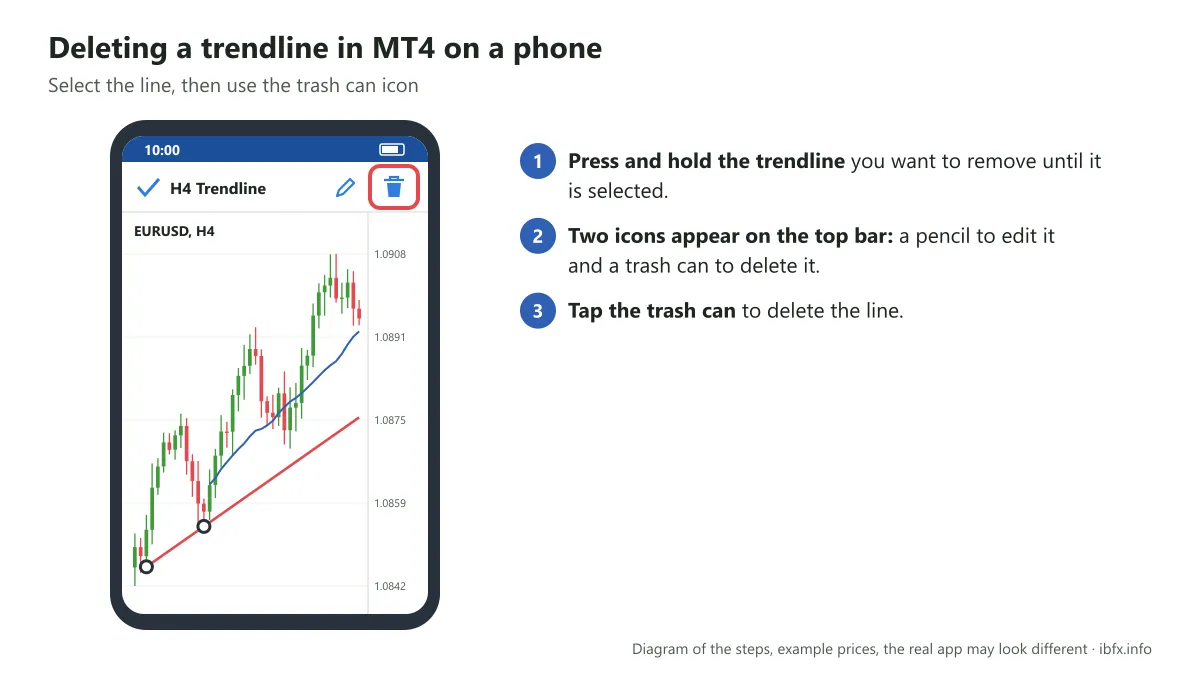
To delete a trendline, all you have to do is press and hold that line for a moment; a pencil and a trash can appear, and you only have to tap the trash can.
That is the whole of the basic guide to using the MT4 app on your phone. You should explore further on a demo account to get your hand in before you trade with real money.